
"What were my five most expensive transactions last month?"
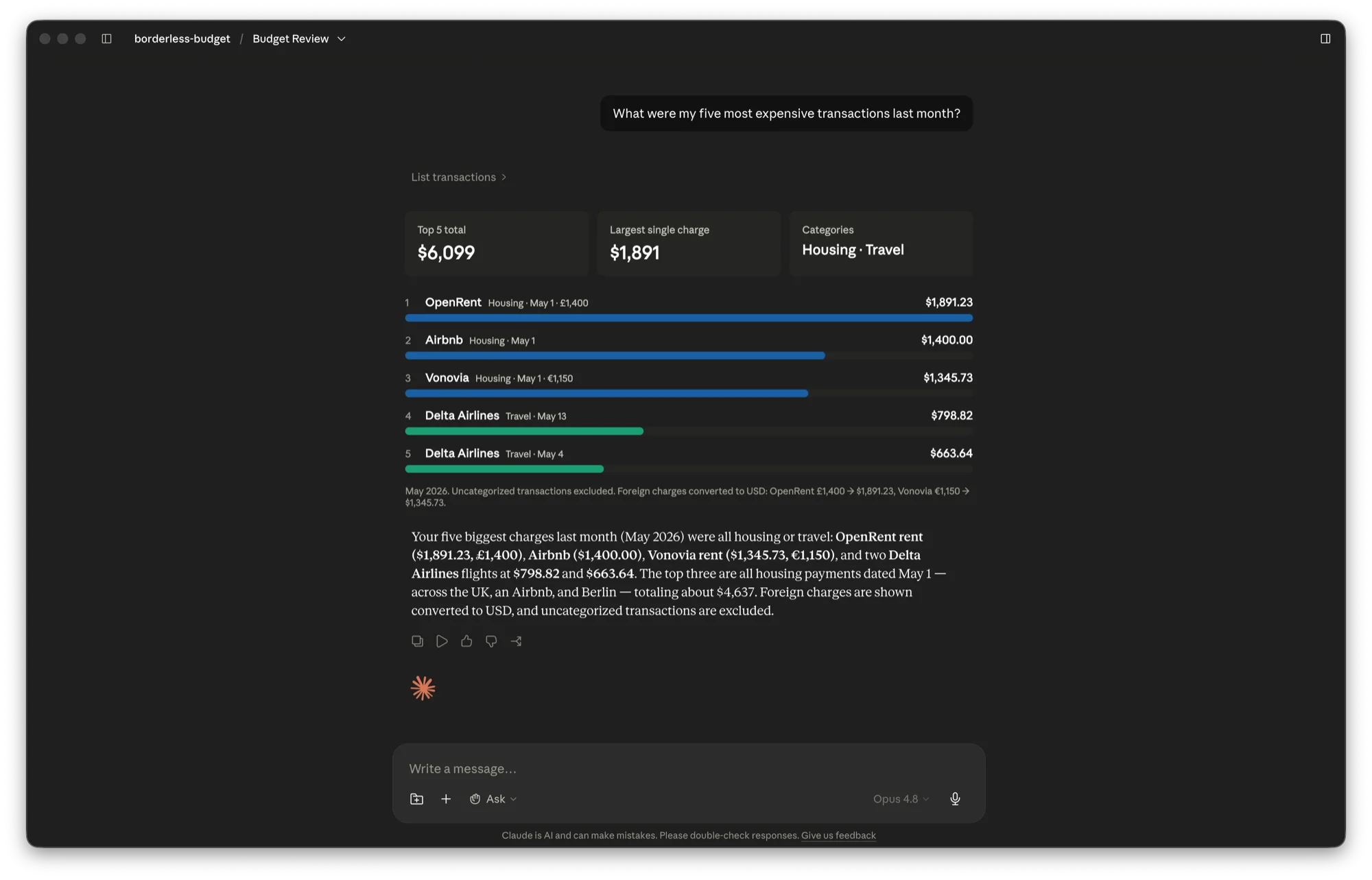
What it can do
- Transactions: list and filter your recent transactions by merchant, category, account, amount, or date.
- Spending by category: total spending grouped by category for any period.
- Cash flow: income, spending, net, and savings rate for a period.
- Budgets: how each category is tracking against its budget for the month.
- Upcoming recurring charges: charges coming due in the next several weeks and which accounts they usually pull from.
- Recurring summary: your subscriptions and recurring bills with annualized and monthly cost.
- Net worth: assets minus liabilities, plus how it has changed over time.
- Spending trend: your monthly spending trend and whether it is rising or falling.
- Accounts and balances: your connected accounts and their current balances.
Every tool is read-only and returns amounts in your home currency, converted from whatever currency each item was originally in.
Before you start
- A Borderless Budget account with at least one connected bank, so the assistant has data to read.
- An assistant that supports custom MCP connectors, such as Claude or ChatGPT. Availability depends on your plan with that provider.
Connect Claude
- In Claude, open Settings, then Connectors.
- Choose Add custom connector.
- Paste this connector URL and continue:
https://app.borderlessbudget.com/mcp - Sign in to Borderless Budget when prompted, then authorize the connection. If your login has more than one account, pick the account you want the assistant to read.
- Start a conversation and ask about your finances. A fresh conversation always sees the latest tools.
Connect ChatGPT
The quickest way is our ChatGPT app. Open it, sign in to Borderless Budget, authorize the connection, and pick an account if you have more than one.
Open the Borderless Budget app in ChatGPT
Prefer to add it manually?
If your plan doesn't include ChatGPT apps, or you'd rather set it up by hand, add it as a custom connector:
- In ChatGPT, open the connector or app settings and choose to add a custom connector.
- Paste this connector URL and continue:
https://app.borderlessbudget.com/mcp - Sign in to Borderless Budget, authorize the connection, and pick an account if you have more than one.
What the assistant can access
The connection is read-only. The assistant can read your transactions, your financial accounts and balances, your budgets, your recurring charges, and summaries derived from them such as cash flow, spending by category, and net worth. It can never move money, change a budget, or edit any of your data.
When you ask a question, the data needed to answer it is sent to the provider that runs your assistant (for example, Anthropic for Claude or OpenAI for ChatGPT). For the full detail on what is sent and how long we keep an audit trail, see our privacy policy.
Disconnect at any time
Open Settings, then Connected Apps to see every assistant connected to your account and revoke access. Revocation is immediate, and changing your password revokes every connected assistant. You will get an email whenever a new assistant connects and whenever access is revoked.
Troubleshooting
- A question returns nothing: the account may have no data for that period or category. Try a wider date range, or confirm a bank is connected with synced transactions.
- The assistant says it cannot see your data, or asks you to reconnect: open Settings, then Connected Apps, reconnect, and start a fresh conversation.
- New tools or updated wording do not appear: start a new conversation. A fresh conversation always loads the latest tools.
- Amounts look off for older months: foreign transactions still awaiting an exchange rate are excluded and flagged, and recently synced data can take a moment to settle.
Questions, or something not working? Email us at support@borderlessbudget.com.