Borderless Budget lets you split a single transaction across multiple categories from the transaction detail sheet.
Open the split editor
Click any transaction to open its detail sheet.
In the detail sheet, click Split it. The split editor opens over the detail.
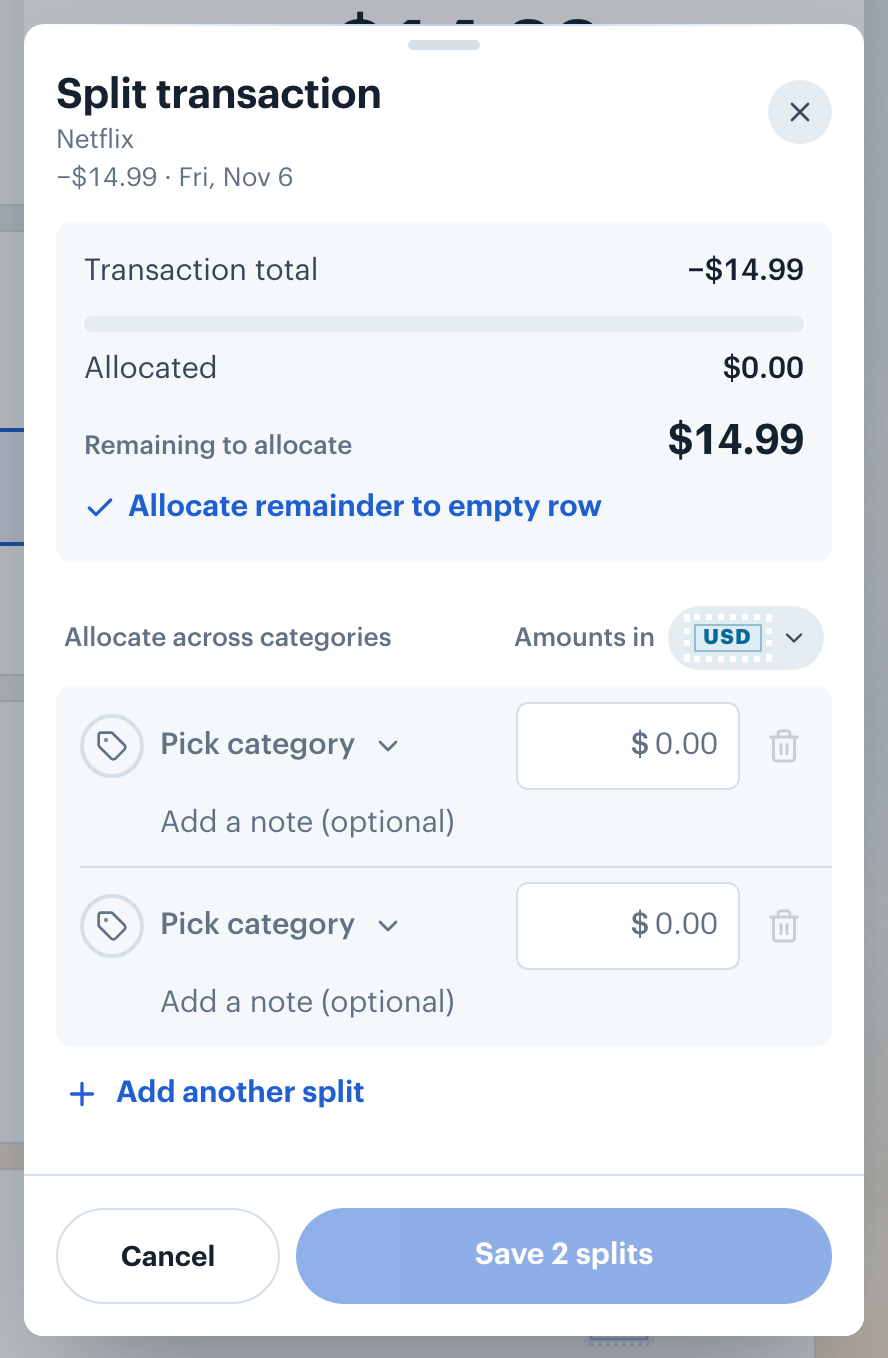
The Split transaction editor showing the original amount ready to divide.
Divide the amount
The summary at the top shows the transaction total, how much is left to allocate, and a bar that fills as you go. While you type on a phone, a smaller copy stays pinned above the keyboard.
The editor starts with two split rows. Each row has a category and an amount. Edit the amounts so the rows add up to the total.
To add a third split, click Add another split.
Give every row a category. If one is missing when you save, the row is flagged with Pick a category for each split. and nothing is saved until you pick one.
Click the save button to apply the splits. Its label counts your rows, for example Save 2 splits.
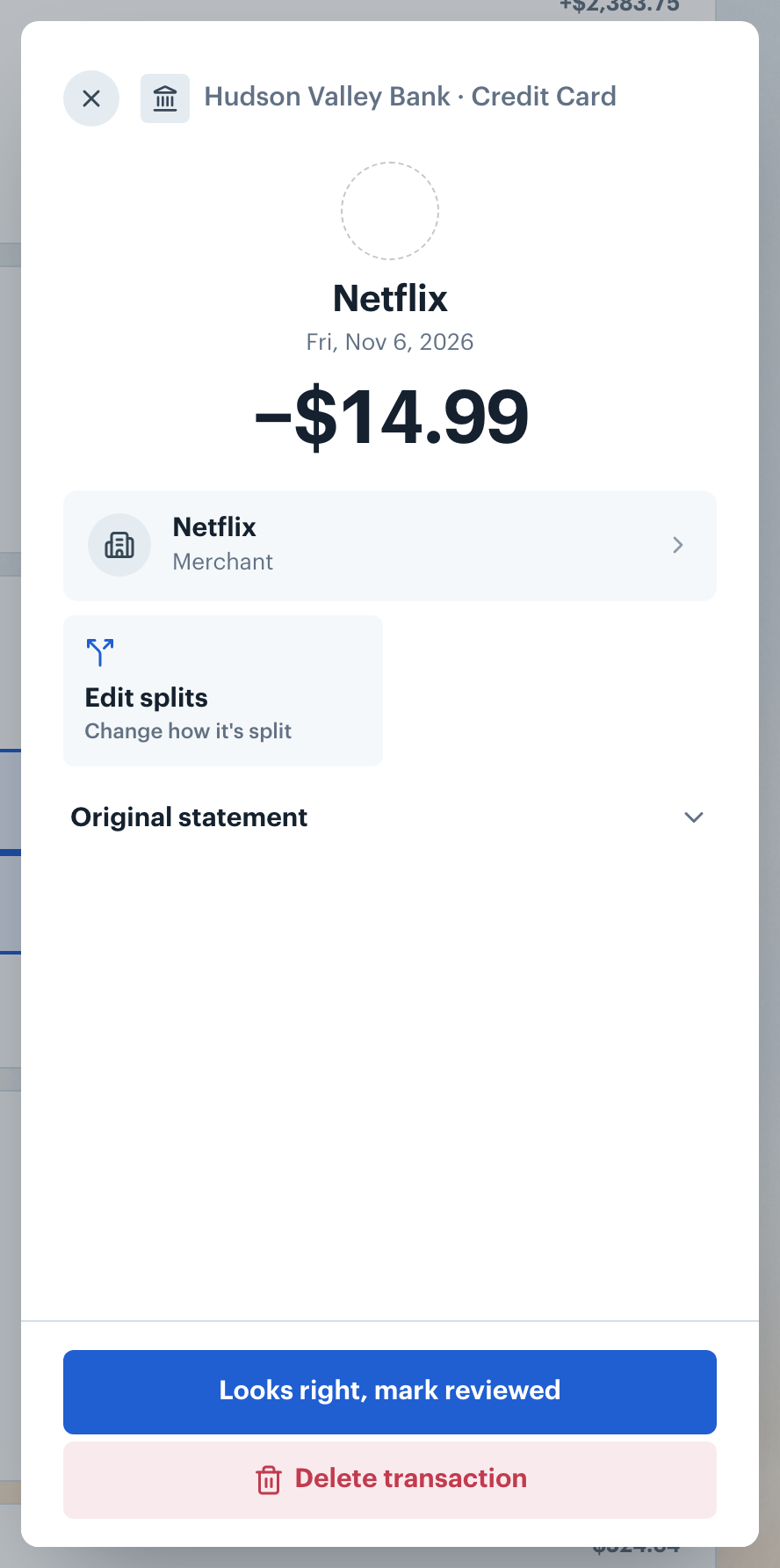
After saving, the detail sheet shows the split transaction with an Edit splits tile. In the list, each split appears as its own row marked with a split icon.
Split a receipt in another currency
If you paid in one currency and your card charged another, you can type the amounts straight from your receipt.
Next to Amounts in, click the currency button and pick the currency on your receipt from the list that opens.
Type each line from the receipt. The total shows in that currency at the exchange rate for the transaction's date, and each row shows the amount it will save in the transaction's own currency.
Card networks use their own rates and fees, so the receipt lines may not use up the whole total. Click the link under the remaining amount to add what's left to the largest split.
Click the save button. Splits are always saved in the transaction's own currency, so reopening the editor shows them in that currency.
Remove splits
Open the detail sheet for a split transaction.
Click Edit splits to reopen the split editor.
Click Remove all splits. The transaction reverts to a single unsplit row with no category assigned.