
Related articles
Track your own money with Borderless Budget
Every account stays in its own currency, and every total adds up in yours. The first 30 days are free.
Get startedA tour of the Accounts tab: the Net worth card, connected banks, accounts added by hand, and connection status.
Every account stays in its own currency, and every total adds up in yours. The first 30 days are free.
Get startedBorderless Budget's Accounts tab gives you a single view of every financial account you hold, along with a running net worth figure and, on a computer or tablet, a recent transaction list.
On a computer or tablet, Recent transactions beside your accounts shows your newest transactions across every account; on a phone, open Transactions.
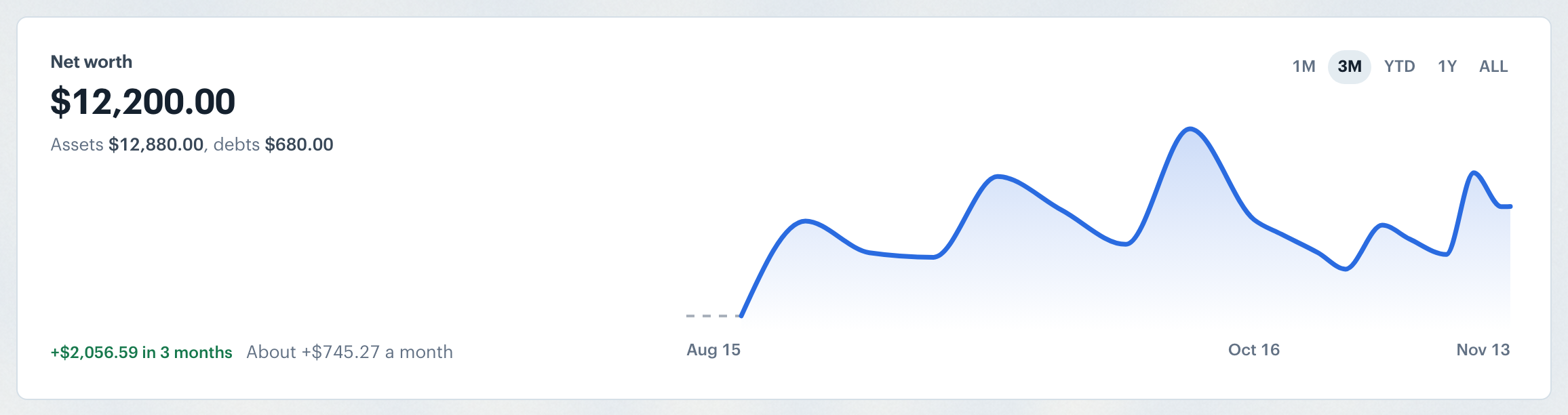
The top of the Accounts tab shows the Net worth card: your current net worth in your home currency, with a line beneath it giving your assets and debts so you can see at a glance how the number is composed.
A line chart beside the figure plots net worth over time. Use the range toggle above the chart to switch between 1M, 3M, YTD, 1Y, and ALL views. Hover or touch the chart to see your net worth, assets, and debts on a given day; the figures in the card stay as they are.
Under your net worth, the card shows the change over the selected range (for example "+$4,694.72 in 3 months") and the average per month. Both update when you change the chart range.
On a phone there is no card: your net worth leads the page in large type, with the change and the chart below it, assets and debts under the chart, and the range buttons at the bottom.
Note: Foreign-currency balances are converted to your home currency before being summed. See International Currency for the details.
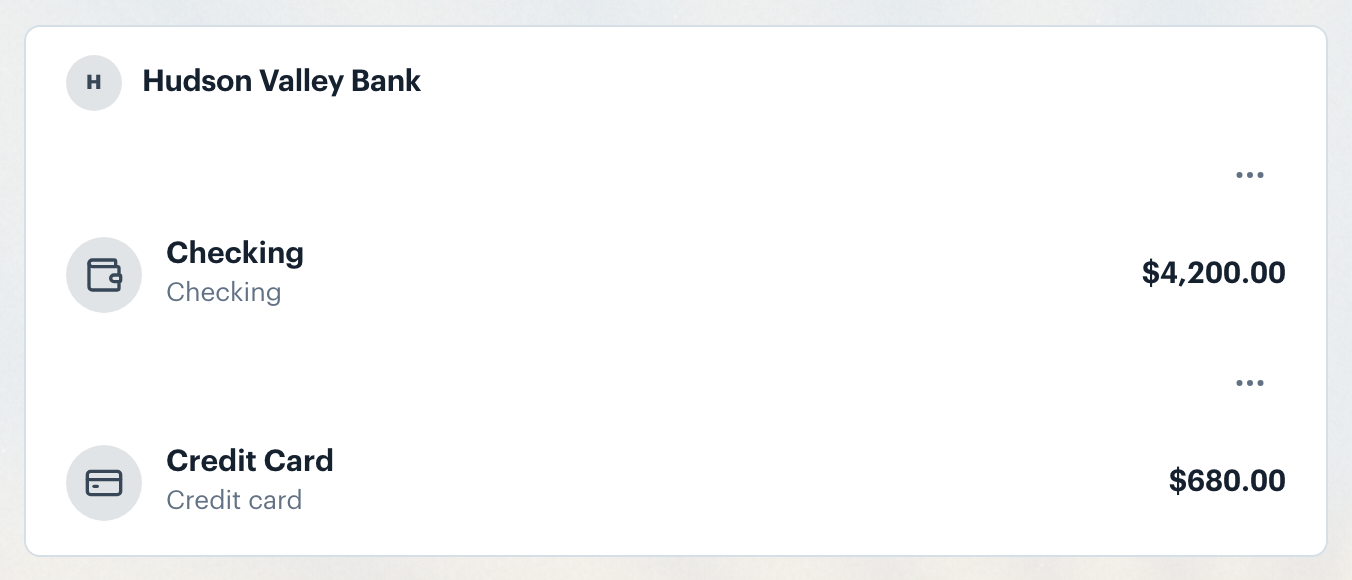
Below the Net worth card, your accounts are listed by the bank or brokerage you connected them from. Each institution card shows the institution name as a header, followed by one row per account. Each row displays the account name, account type, and current balance; the account page shows the last digits of the account number.
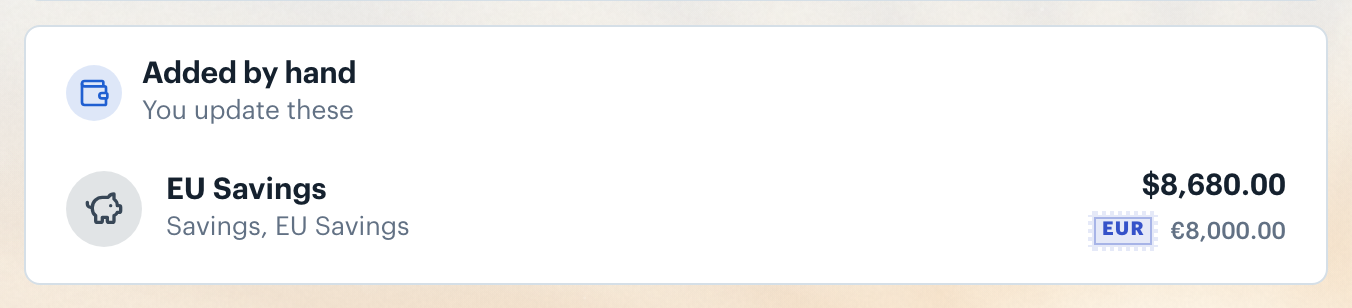
When an account's currency differs from your home currency, the balance is shown in your home currency, with the balance in the account's own currency beneath it.
Click any account row to open its account page, which shows balance history and the transactions for that account.
To add an account, click the Add account button at the top of the page (on a phone it shows only a plus sign) and choose Connect a bank to start the bank connection flow, or Add one by hand for one you track yourself.
Accounts you track by hand appear in an Added by hand card below all connected institutions. Each row follows the same layout as connected account rows: name, type, and balance.
Accounts added by hand do not show a connection status and are never grouped with bank connections.
Want to add an account by hand? See Creating Manual Accounts.
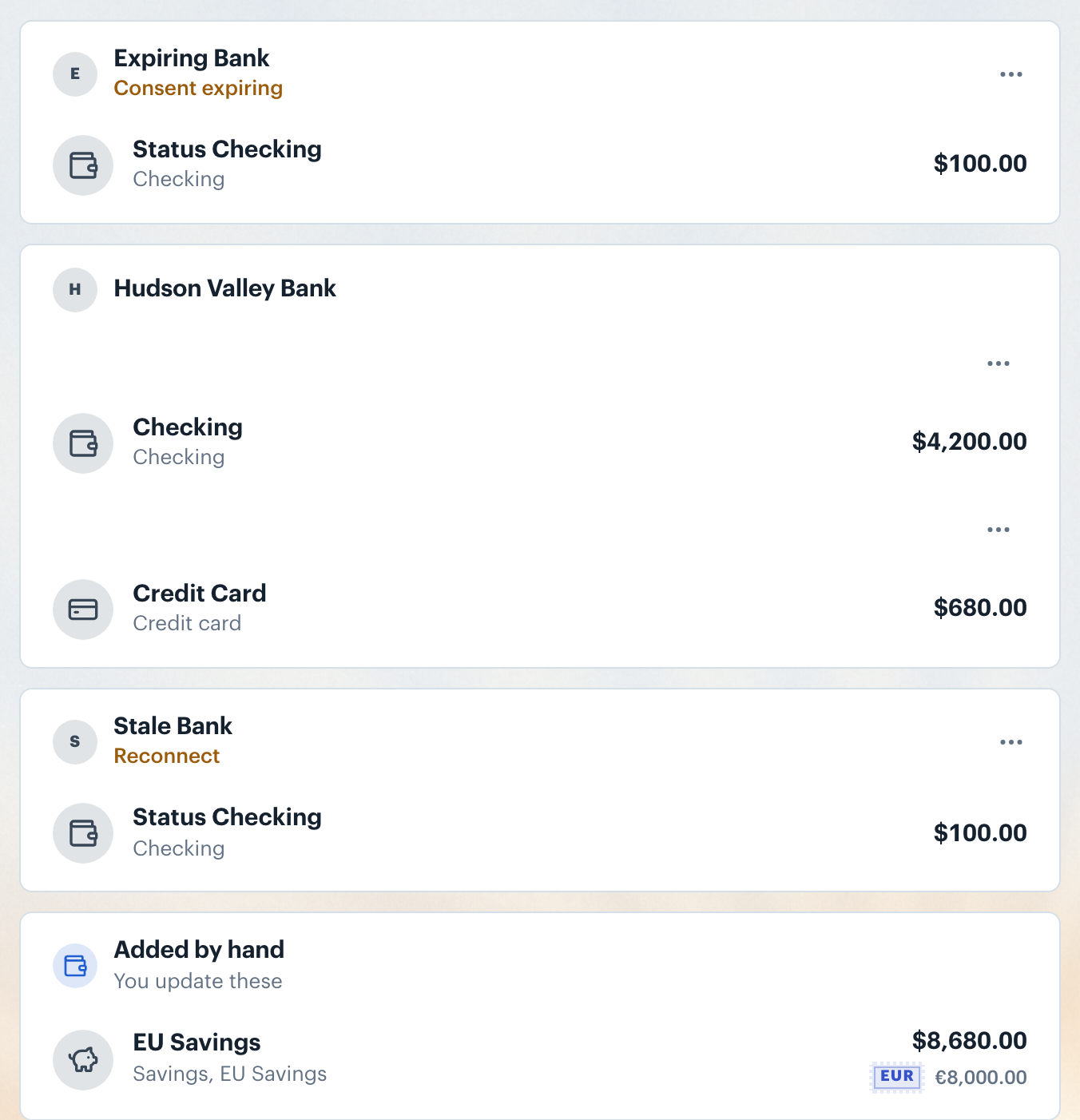
Each connected institution card shows a status under the institution name only when the connection needs you. A healthy connection shows nothing; a bank that needs you shows Reconnect; a sync that has not run for a day or more shows when it last synced, with an orange dot. While a sync is in progress, the line reads "Syncing" with a sync icon.
A bank you just connected reads "Waiting for first sync" until its first import finishes. "Sync problem" means the bank reported an error on its last sync; on a computer or tablet the card explains it, and once a sync succeeds the status disappears.
A Consent expiring label means your bank's open-banking consent is about to lapse. Reconnect means the connection needs you to sign in to your bank again before new transactions can import.
Click Reconnect or Consent expiring to go directly to the reconnection flow.
Need to fix a broken connection? See Reconnecting a Bank.
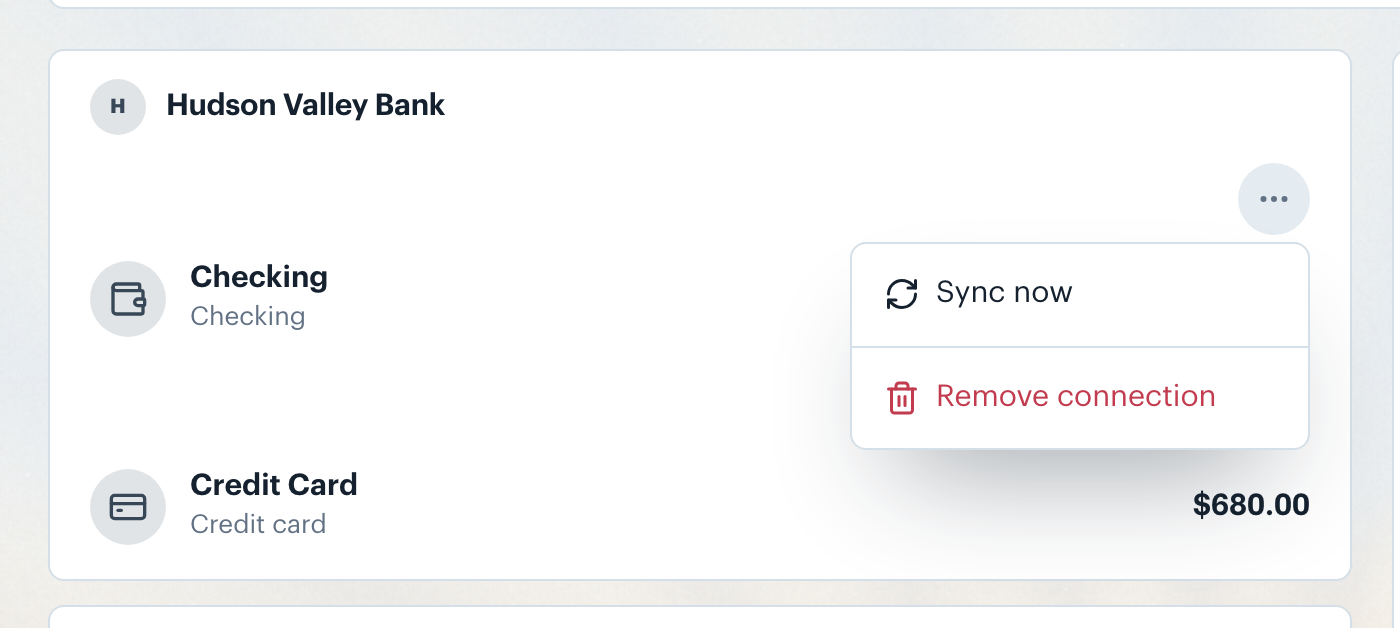
Each bank connection has its own ⋯ icon button. On a card with one connection it sits at the right of the header row; a card that groups several connections to the same bank shows one beside each connection's status, above that connection's accounts. Opening it reveals the options for that connection: Sync now to request an immediate data refresh, New accounts when your bank has accounts you have not added yet, and Remove connection to permanently delete the connection and all its accounts.
The Sync now option is disabled while a sync is already in progress. Choosing Remove connection shows a confirmation prompt before deleting.
The ⋯ button beside Add account at the top of the page is a different menu. It holds one switch, Show hidden accounts, which brings accounts you have hidden back into the list, faded.
When you have no accounts yet, the page shows an Add your bank account heading with a short list of benefits, an Add your bank account button that starts the bank connection flow, and an Add one by hand button.

👋 Still have questions? Email [email protected].