
Related articles
Track your own money with Borderless Budget
Every account stays in its own currency, and every total adds up in yours. The first 30 days are free.
Get startedSteps to create, edit, reorder, and archive budget categories, change several at once, and bring an archived one back.
Every account stays in its own currency, and every total adds up in yours. The first 30 days are free.
Get startedSteps to create, edit, reorder, and archive categories in Borderless Budget. Everything here starts from the Budgets screen.
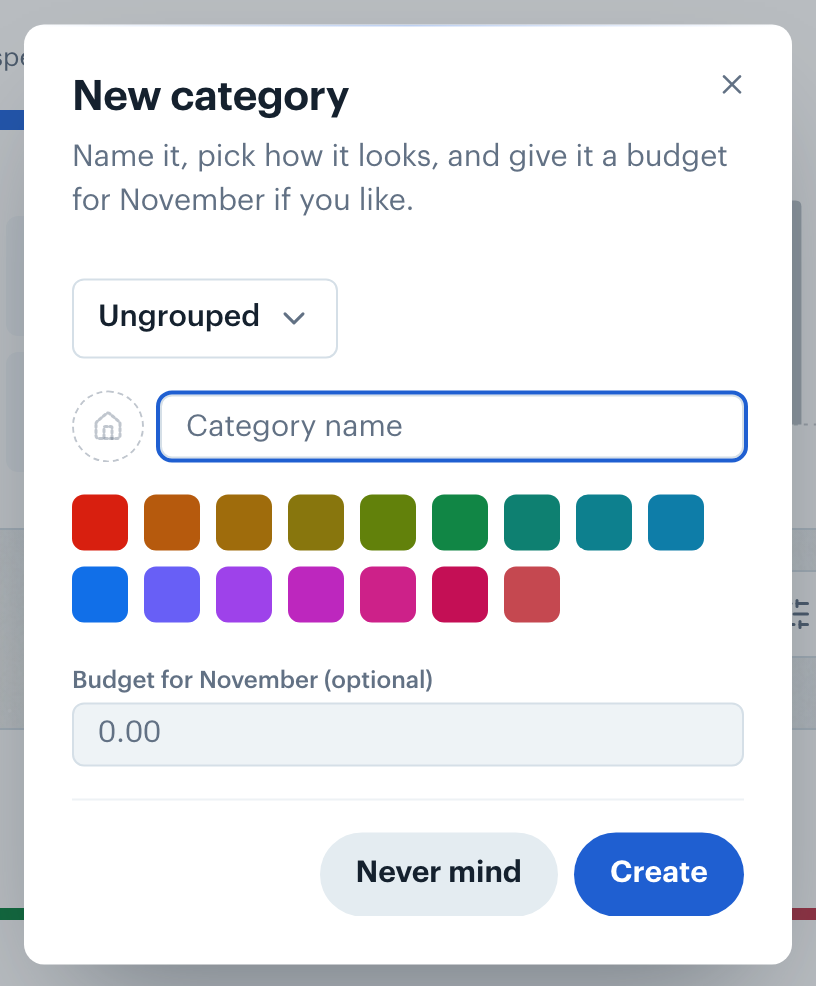
Click Add a category above your categories. The New category dialog opens. Type a name into the Category name field, pick an icon and a color, and choose a group (or create a new one). Leave the group as Ungrouped if the category doesn't belong in one. To budget for the category right away, enter an amount in the "Budget for (month) (optional)" field, which names the month you're viewing. The amount applies to that month and every later month. Click Create to save.
The new category appears in the list right away. Categories in the same group share a card on the Budgets screen, whose header shows the group's combined spending and budget.
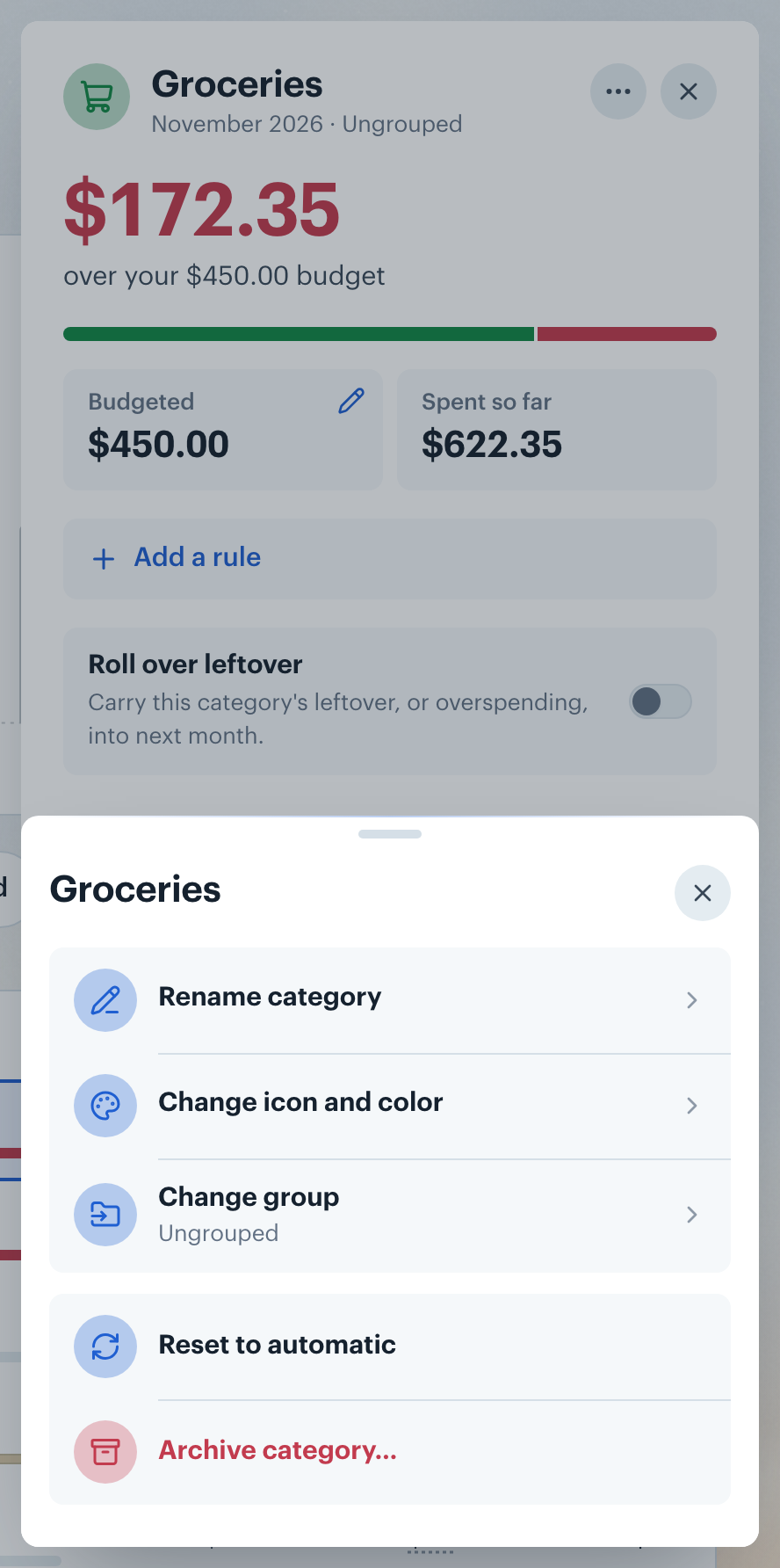
Click the category's row on the Budgets screen to open its detail. Click Budgeted to change the budget for the month you're viewing, then Apply. Everything else is under the ⋯ button (More actions) at the top of the detail:
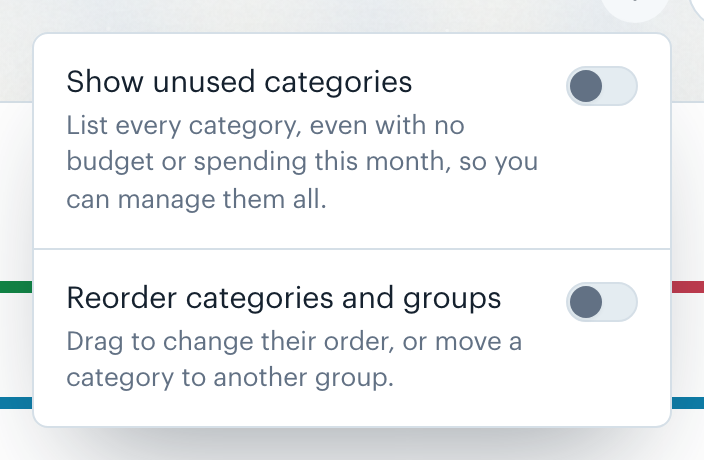
The Budgets screen lists the categories that have a budget or spending in the month you're viewing. To list the rest too, click the ⋮ button (Category options) above your categories, left of New category, and turn on Show unused categories. Every other active category except transfer categories appears in its group with no budget, so you can set a budget for it, move it, or archive it.
Borderless Budget remembers the setting in this browser until you turn it off.
Each drop saves right away. To move an item with the keyboard, focus its handle, press Space, move it with the arrow keys, and press Space again to drop it.
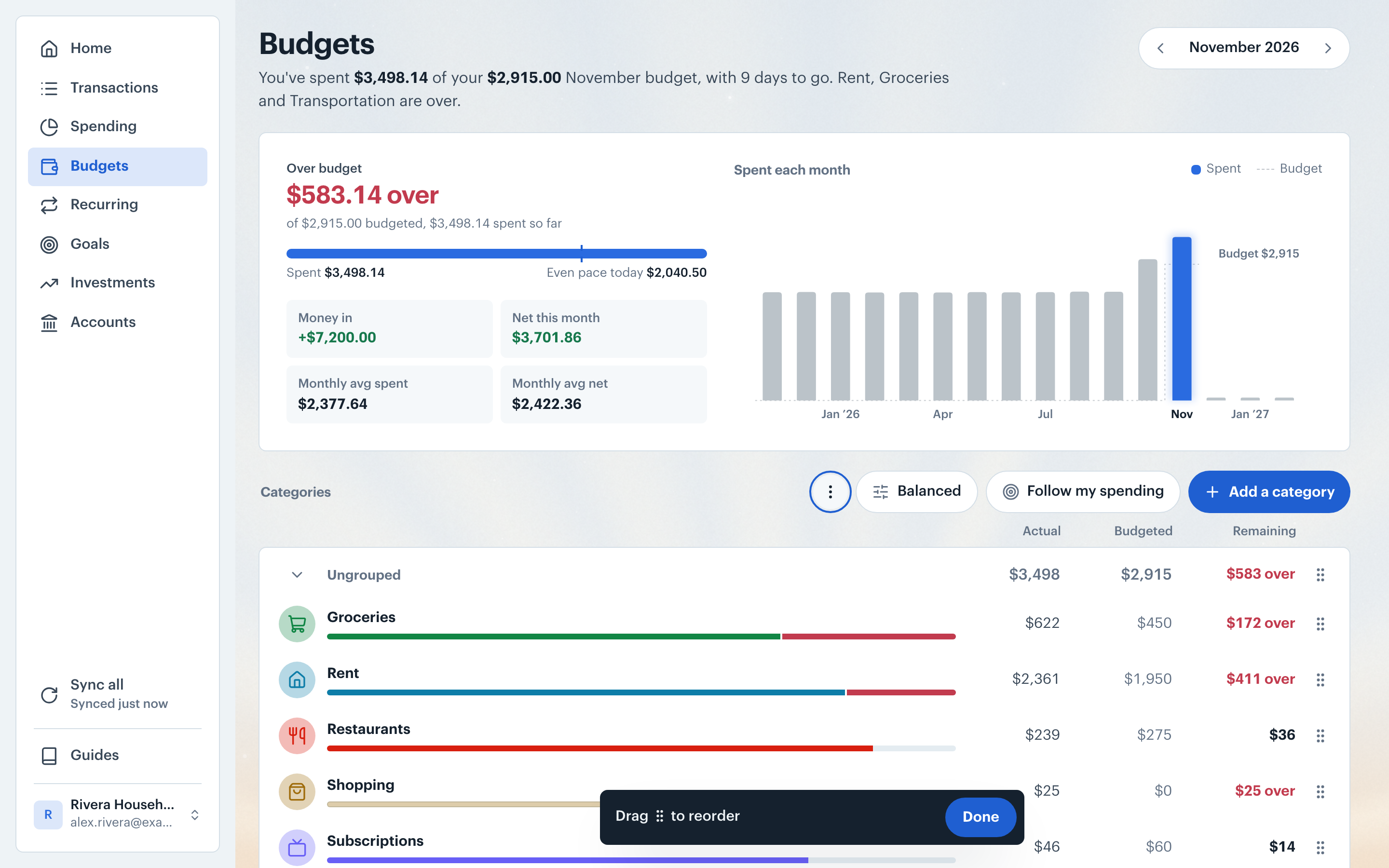
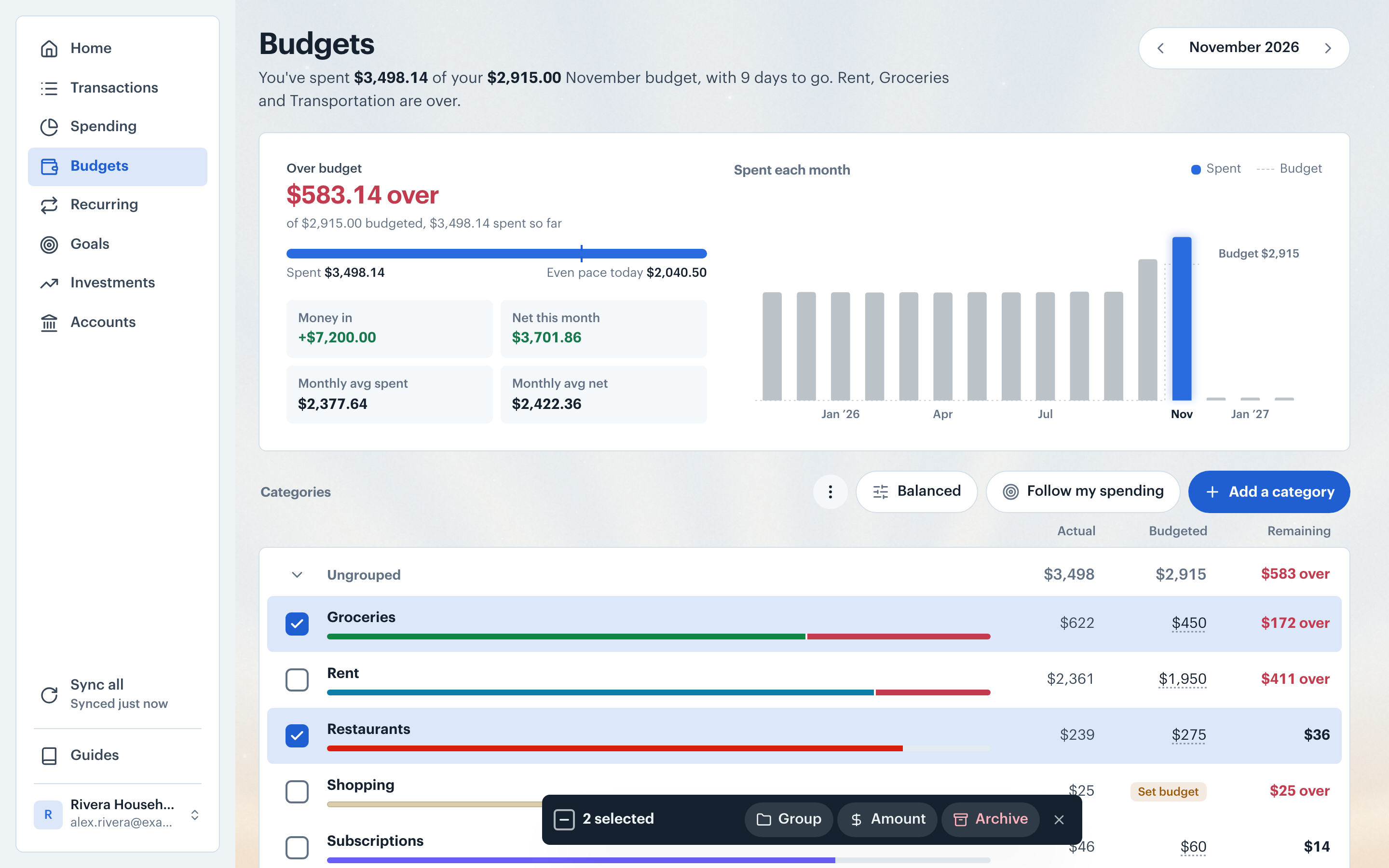
A category doesn't need a group. Ungrouped categories appear together under an Ungrouped heading on the Budgets screen.
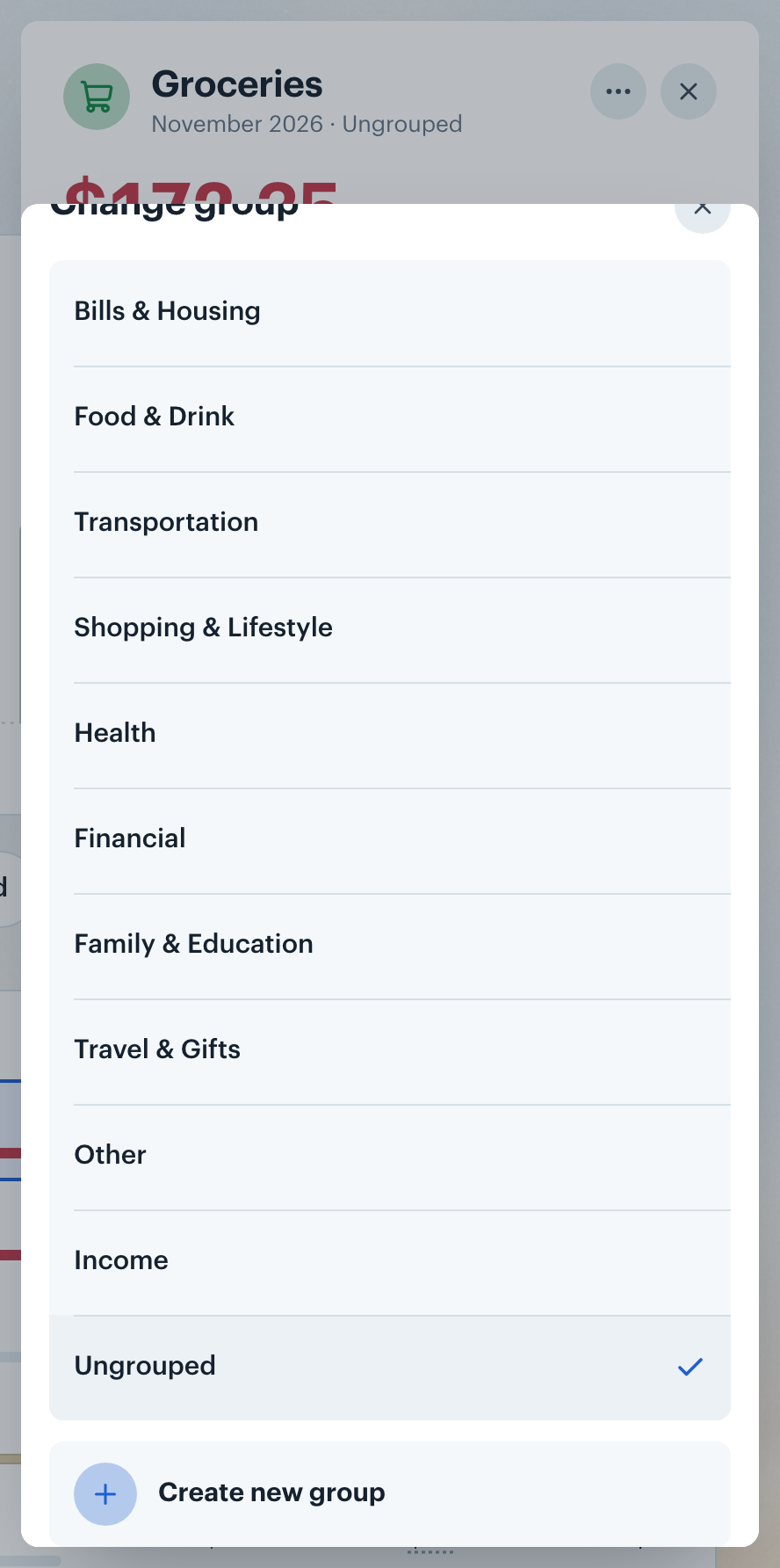
To take a category out of its group, open its detail, click the ⋯ button and choose Change group. Choose Ungrouped, at the bottom of the list above Create new group.
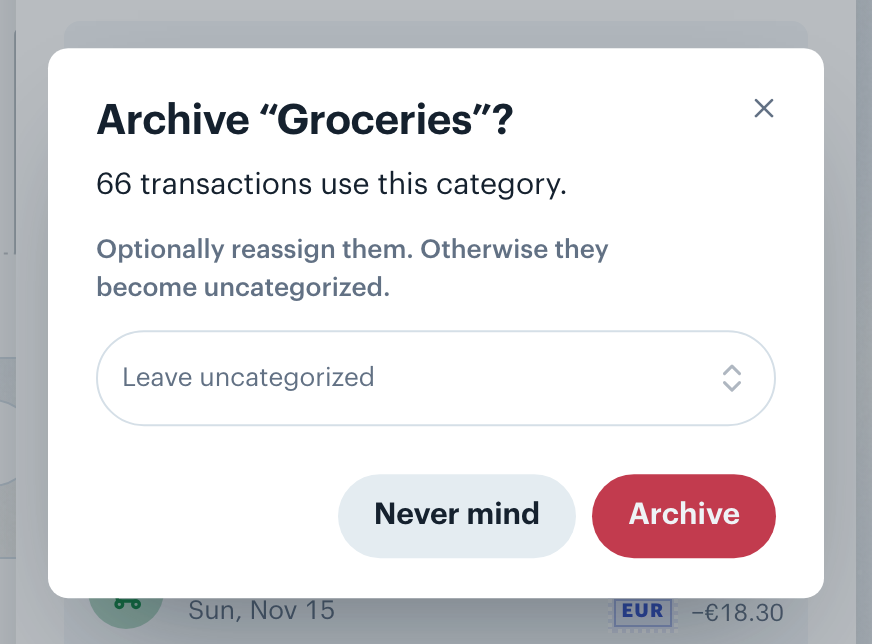
Note: Archiving also removes the category from your budget plan. Past months keep their spending history. With budget rollover on, the archived category carries nothing, and a replacement you picked starts its carry again from this month. See Budget Rollover.
An archived category appears in the Archived card after your groups, in any month where it has spending. Click its row to open its detail, then click Unarchive category. The category returns to the active list. Transactions that moved to a replacement or became uncategorized when you archived it stay where they are. With budget rollover on, the category's carry starts again from the month you bring it back.
👋 Still have questions? Email [email protected].