
Related articles
Track your own money with Borderless Budget
Every account stays in its own currency, and every total adds up in yours. The first 30 days are free.
Get startedA tour of the Budgets tab: the budget plan, the month summary, category budget bars, group cards, the month picker, and the category detail.
Every account stays in its own currency, and every total adds up in yours. The first 30 days are free.
Get startedBorderless Budget's Budgets tab gives you a month-by-month view of how your spending compares to the amounts you've set for each category.
The page header shows Budgets and one sentence that answers how your month is going: how much you've spent of your budget, how many days are left, and which categories are over. On the right sits the month control, which sets the month for the whole page.
Above your categories, beside the Categories heading, sit the ⋮ button, a pill naming how much to budget (Balanced to begin with) and Add a category. Click Add a category to create a category, pick its group, icon and colour, and give it a budget.
Want to create or reorganize categories? See Managing Categories.

Use the arrows to move one month at a time, or click the month to open the month picker: a year of months, with a dot under every month that has a budget. You can go back to the first month with transactions and forward to 11 months after this one. Past months show what you spent against the budgets set then.
Your budget is one plan that every month follows, up to a year ahead. A category's amount is either set by the app or typed by you. The app starts from your own spending in the last 3 complete months plus the recurring charges you've confirmed, and keeps those amounts current: it updates them as each month closes and when a new account finishes importing. When an import changes them, the line "Updated with spending from your new account" shows above your categories for the rest of the month.
An amount you type stays as you set it. To hand a category back to the app, open its detail, click the ⋯ button and choose Reset to automatic, which appears on categories whose amount you typed. Changing an amount changes only the month you're viewing unless you choose otherwise.
Note: Budgets you had before November 2026 kept their amounts as typed, so the app sets none of them until you reset a category to automatic.
Want to change an amount for one month or every month? See Adjusting Monthly Budgets.
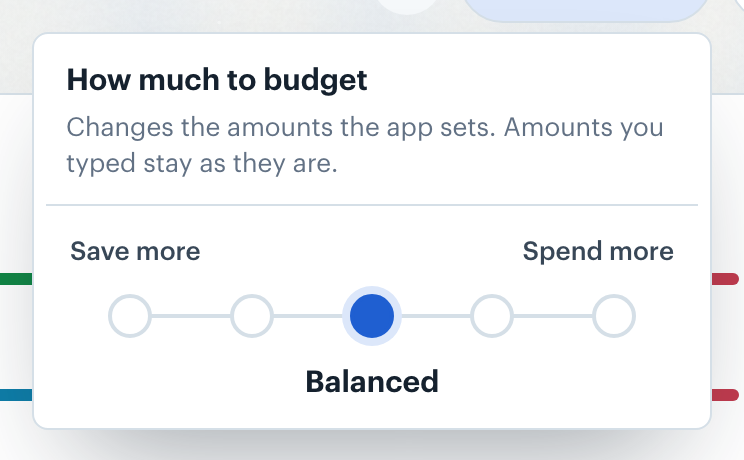
Click the pill beside Add a category to open How much to budget: five stops between Save more and Spend more, with Balanced in the middle. The choice saves at once and changes the amounts the app sets; amounts you typed stay as they are.
Before a full month of spending is in, Budgets lists common categories with no amounts, and no total. Add an amount to any category you want to plan; the app fills in the rest once a full month of spending is in. While your first import runs, "Importing your transactions" shows above the list.
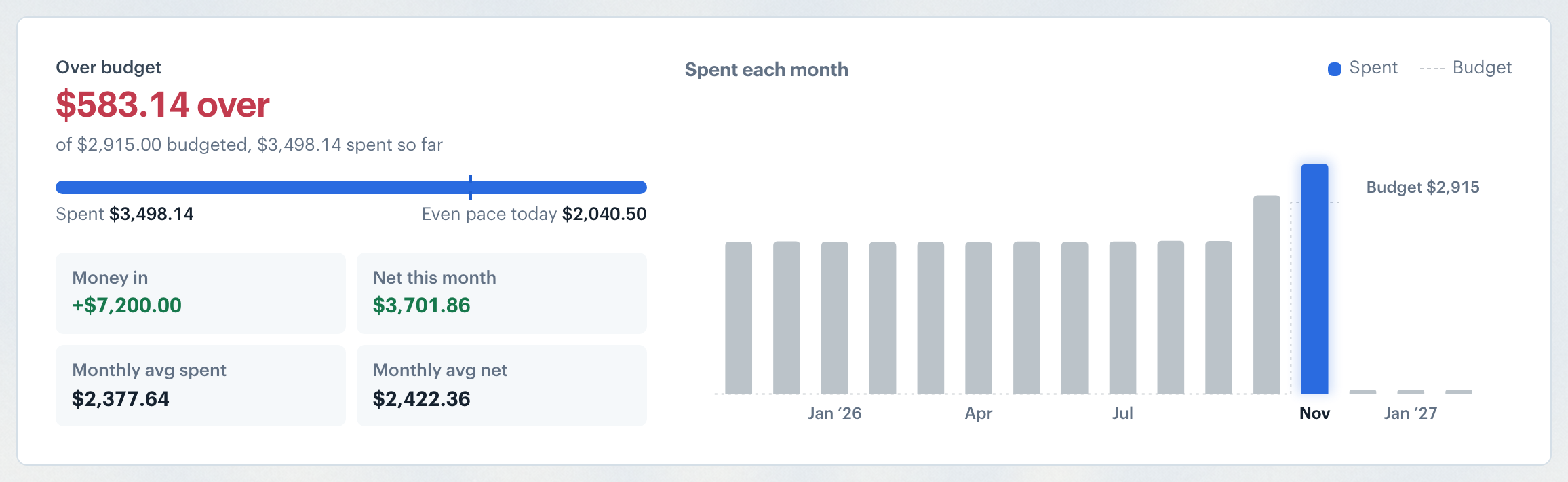
The card at the top leads with Left to spend for the month, or how much you are over. A bar fills as you spend; in the current month a dashed mark shows where you'd be if you spent evenly, and Even pace today gives that amount. Four tiles show Money in, Net this month, Monthly avg spent and Monthly avg net. With a plan style that measures your plan, such as 50/30/20, Flex or Zero-based, the plan takes the tiles' place under Left to spend, with Change plan to pick another style, and the tiles shrink to one line under the chart: "Money in $4,618.02 · Net this month −$3,132.98 · Avg spent $15,499.09". Spent each month charts recent months against their budgets: point at a month to see its figures, click it to open that month.
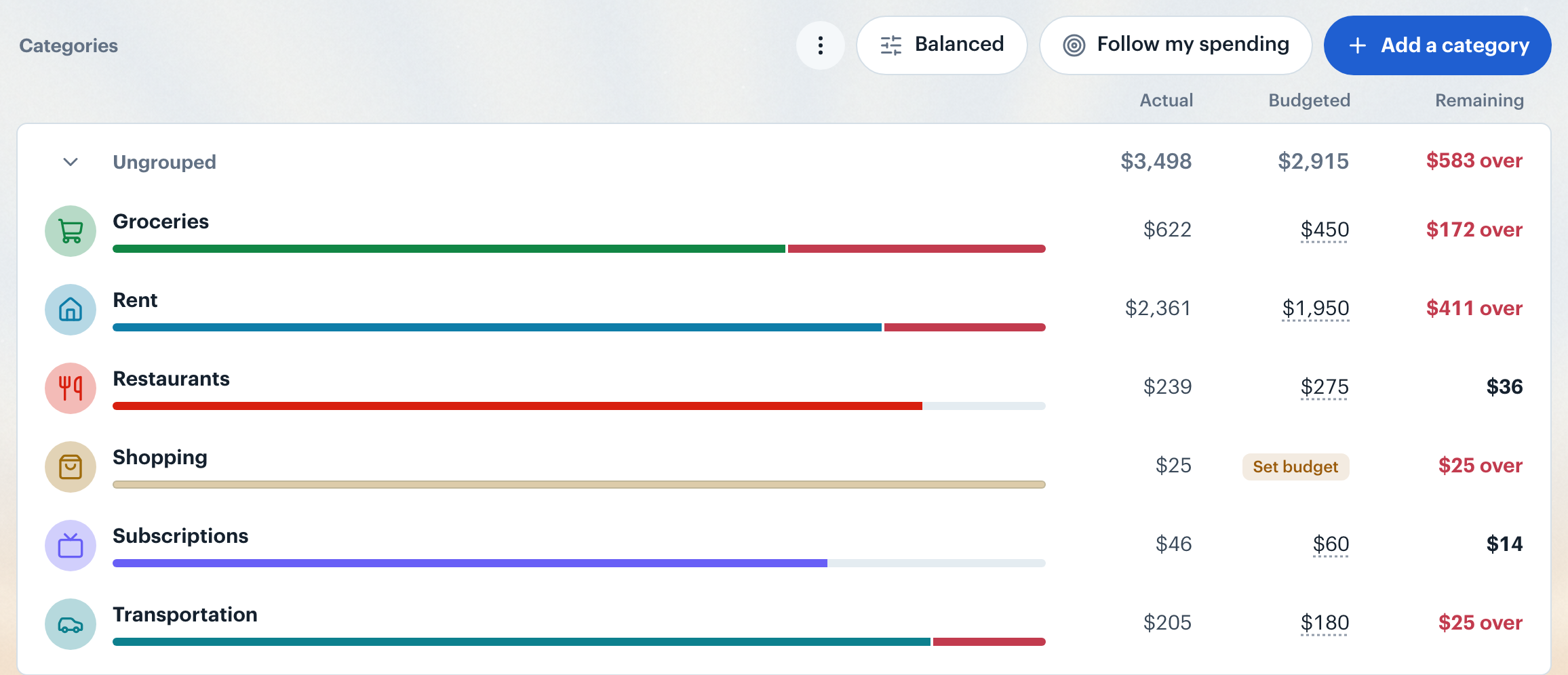
Categories sit in one card per group. Click the chevron to collapse a group. Each row shows the category, its budget bar under the name, then Actual, Budgeted, and Remaining. When a category is over budget, Remaining reads, for example, "$120 over". Click a Budgeted amount to change it, or Set budget where there is none yet. With budget rollover on, a category you didn't budget this month shows what it carried over as its Budgeted amount; hover it to see where it came from, and click it to set a budget, which is added to the carry. On a phone, each row shows what you spent of your budget under the bar, and Remaining on the right.
Want to carry leftover into next month? See Budget Rollover.
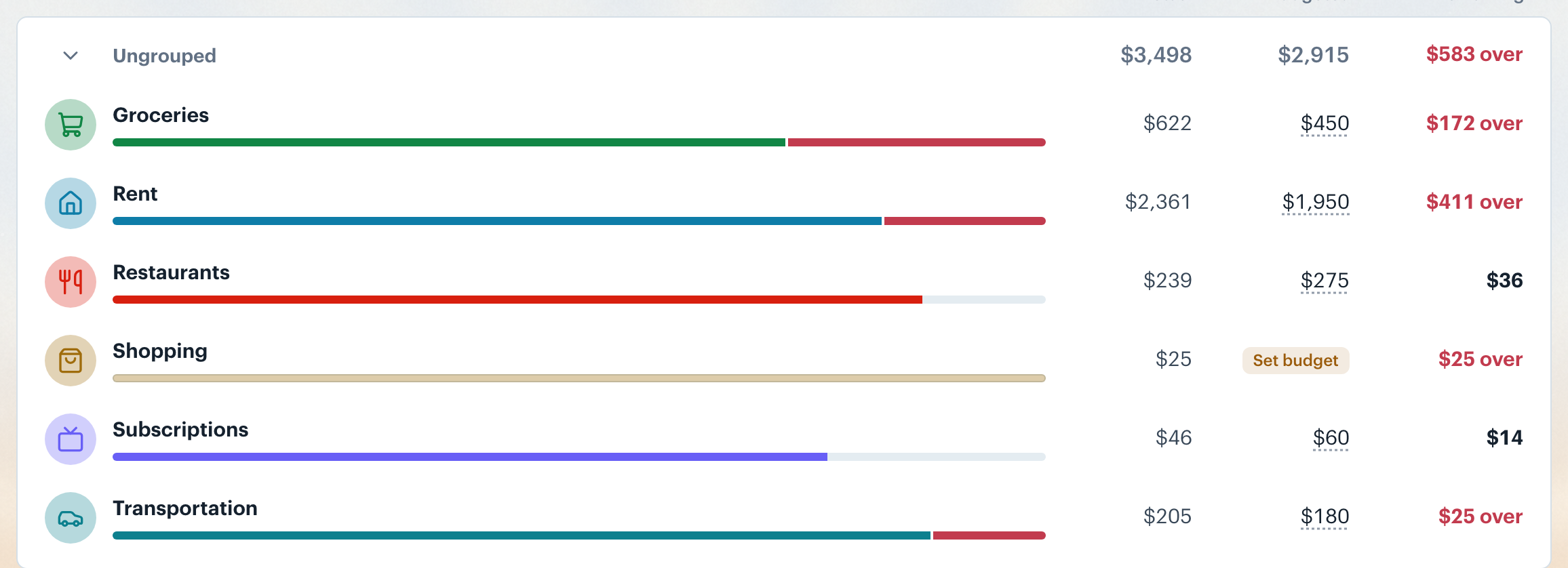
Each category row contains a horizontal bar that fills from left to right as spending accumulates. The fill color comes from the category's assigned color. A hatched segment at the right edge of the fill indicates upcoming recurring charges that have not yet posted. With budget rollover on, the bar starts with what carried in from last month: leftover in a lighter shade of the category's color, overspending in red.
Note: All bar math uses your home currency. Foreign-currency transactions are converted before the bar is drawn. See International Currency for the details.
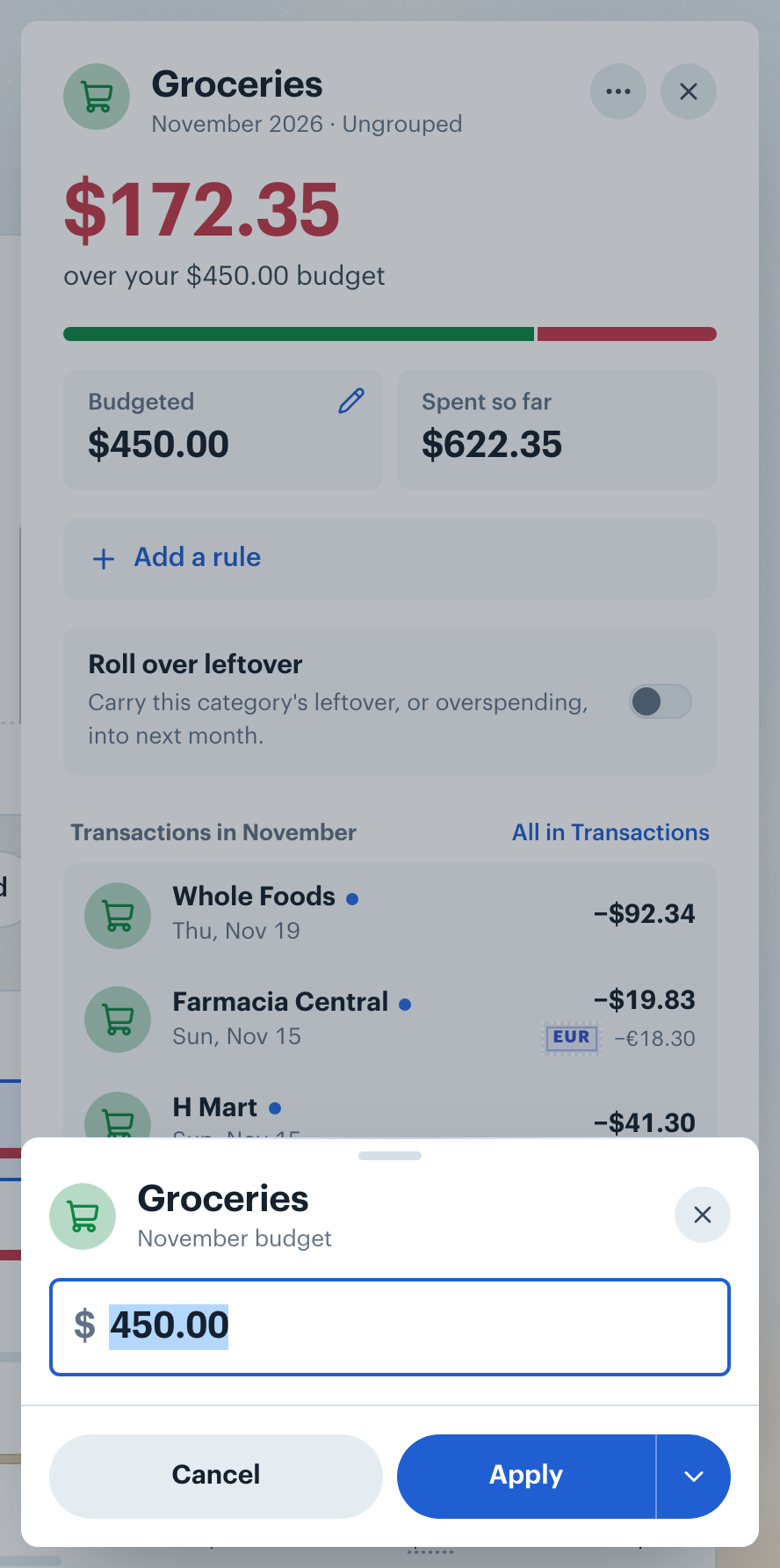
Clicking a category opens its detail in a panel over the page (a sheet from the bottom on a phone). It leads with what's left of the budget, then the budget bar and two tiles: Budgeted and what you've spent. Click Budgeted to change the amount, then Apply. With budget rollover on, a breakdown shows the month's budget and what carried in, and a switch turns rollover on or off for the category. Then come the month's transactions; select some to categorize, mark reviewed or delete them together, and All in Transactions opens the full list for the month. Your 6- and 12-month averages, a chart of recent months and upcoming recurring charges follow. The ⋯ button at the top renames the category, changes its icon, color or group, resets a typed amount to automatic, or archives it. Close the detail with the X, Escape, or by clicking outside it.
Want to edit a budget amount inline? See Adjusting Monthly Budgets.
When transactions exist that have not been assigned a category, a notice appears after your last spending group. It shows the count of uncategorized transactions and links to the Transactions page filtered to that set. Assigning categories to those transactions causes them to appear in the correct budget rows.
👋 Still have questions? Email [email protected].