
Related articles
Track your own money with Borderless Budget
Every account stays in its own currency, and every total adds up in yours. The first 30 days are free.
Get startedA tour of Home: the sentence at the top, Needs you, Your money, Coming up, and where your money went.
Every account stays in its own currency, and every total adds up in yours. The first 30 days are free.
Get startedHome is the first page you see. It answers one question at the top, how your month is going, and below that shows what needs you, where your money stands, and what is still to come this month.
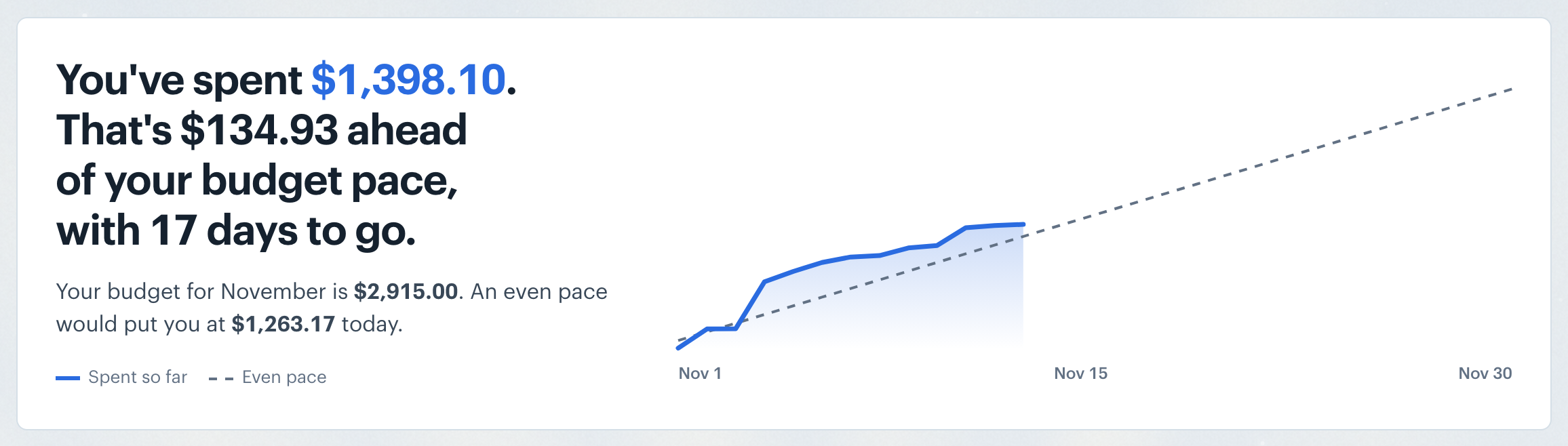
The top of Home is one plain sentence about your spending so far this month, with the amount highlighted. With a budget set up, it says how far ahead of or behind an even pace you are and how many days are left, and the line under it gives your budget and where an even pace would put you today. Without a budget, it compares this month with the same point last month, and the line under it gives last month's total and a typical month over the last three.
The chart beside it plots your spending day by day. With a budget, a dashed line shows even pace and a dotted line carries the bills you already know about to the end of the month. Without one, it shows last month and a typical month for comparison. Hover the chart to read any day.
On a phone the chart sits under the sentence and draws only this month: your spending so far and the bills still to come, plus even pace when you have a budget. Touch and drag along it to read any day.
The sentence is a link: it opens Budgets, or Spending when you have no budget.
When something is waiting for you, Needs you lists it: accounts to reconnect, transactions to review, recurring charges that need a look (a missed charge, a price change, a new category), and possible recurring charges to confirm. Each item shows how many there are, a short description, and a button that takes you where the work gets done. On a phone, tap the whole row.
When everything is handled, Needs you shows a single row, All caught up, so you know nothing needs your attention.
Want to understand how recurring detection works? See Home FAQ.

Your money shows three figures side by side. On a phone, Net this month and Net worth sit side by side as two tiles, and Currency impact, when it shows, runs full width below them.
Net this month is your income minus your spending so far this month, with money in and money out underneath. Its small chart runs day by day, and the chip says where the month is likely to end once your known recurring charges and income land. Want the full picture? See Net This Month Explained.
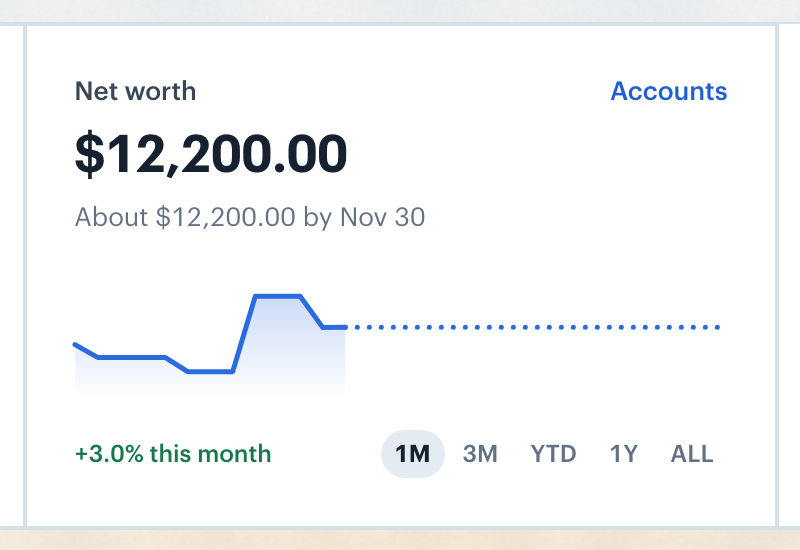
Net worth is your assets minus your debts across the accounts you have connected, with nothing imputed. The line under it gives where it should be at the end of the month. Use 1M, 3M, YTD, 1Y and ALL to change how far back the chart and the change chip reach. On a phone each tile shows a small chart instead (Net this month's last six months as bars, Net worth as a trend line), with no chip and no range buttons.
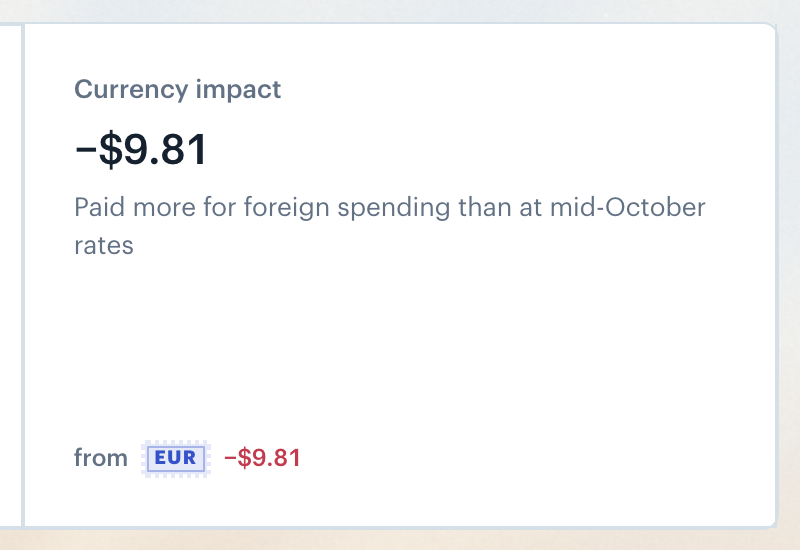
Currency impact appears when you spend or hold money in other currencies. It shows how much more or less you paid for foreign spending this month than you would have at the middle of last month's rates, with each currency's share beside its stamp.
Note: Foreign-currency balances are converted to your home currency. See International Currency for the details.
Coming up lists the recurring charges still due this month, soonest first, with their total. Income you expect shows as a small "coming in" note beside the total. Up to six charges show; when there are more, a link takes you to the rest on Recurring. Tap a charge to open it.

Without a budget, Home ends with the six categories you spent the most on this month, each with its share of your spending and how many charges it took. All spending opens the Spending page.
Want to set up a budget? See Budgets Overview.
👋 Still have questions? Email [email protected].