
Related articles
Track your own money with Borderless Budget
Every account stays in its own currency, and every total adds up in yours. The first 30 days are free.
Get startedA tour of the Recurring page: what your recurring charges cost, Pending review, the month card, the Schedule and a charge's details, on a computer and on a phone.
Every account stays in its own currency, and every total adds up in yours. The first 30 days are free.
Get startedBorderless Budget's Recurring page tracks subscriptions, bills, and other repeating charges. The line under the title says what they cost a month and a year and links to anything waiting for a decision; on a phone it is the page's headline.
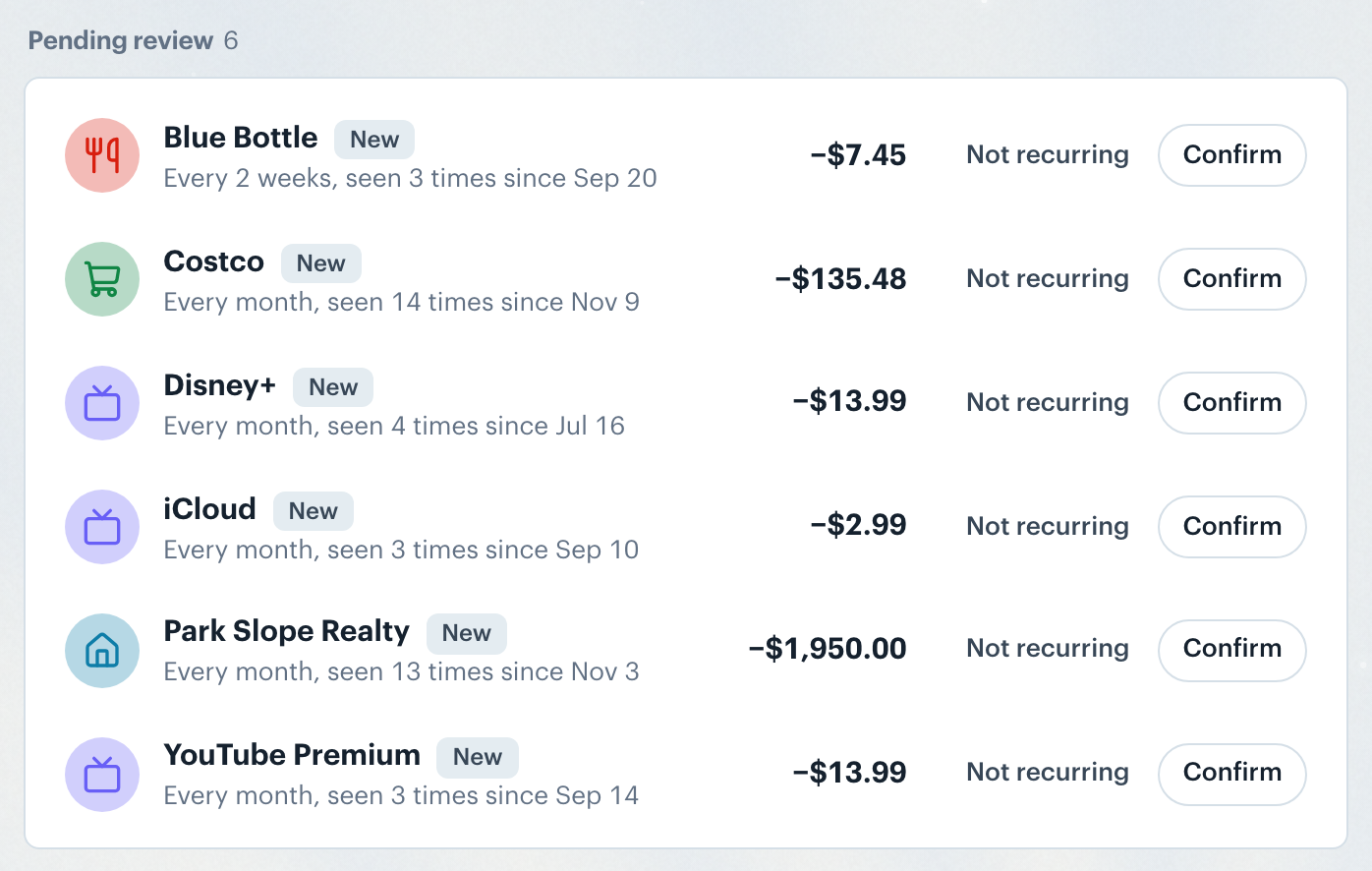
The Pending review section lists charges that need a look (an overdue charge, a price change, a frequency drift, or a heads-up about a yearly, quarterly or other large infrequent charge coming in the next three months) and New charges we think repeat.
On a computer each new charge has Confirm and Not recurring buttons. On a phone you swipe instead: right for the main action (confirm, mark paid, snooze a heads-up), left to say it is not recurring, dismiss the change, or reject a new price. Swipe to sort shows beside the section's name on your first visit.
When a charge's price changes, Keep new price makes the new amount what we expect from now on. Reject keeps the old amount: use it for a one-off charge. If the next charge is off again, the row comes back.
Clicking a new charge opens a sheet with how often we saw it. Confirmed charges move to the Schedule, below the month card.
Want to confirm or dismiss a detected charge? See Confirming Recurring Charges.
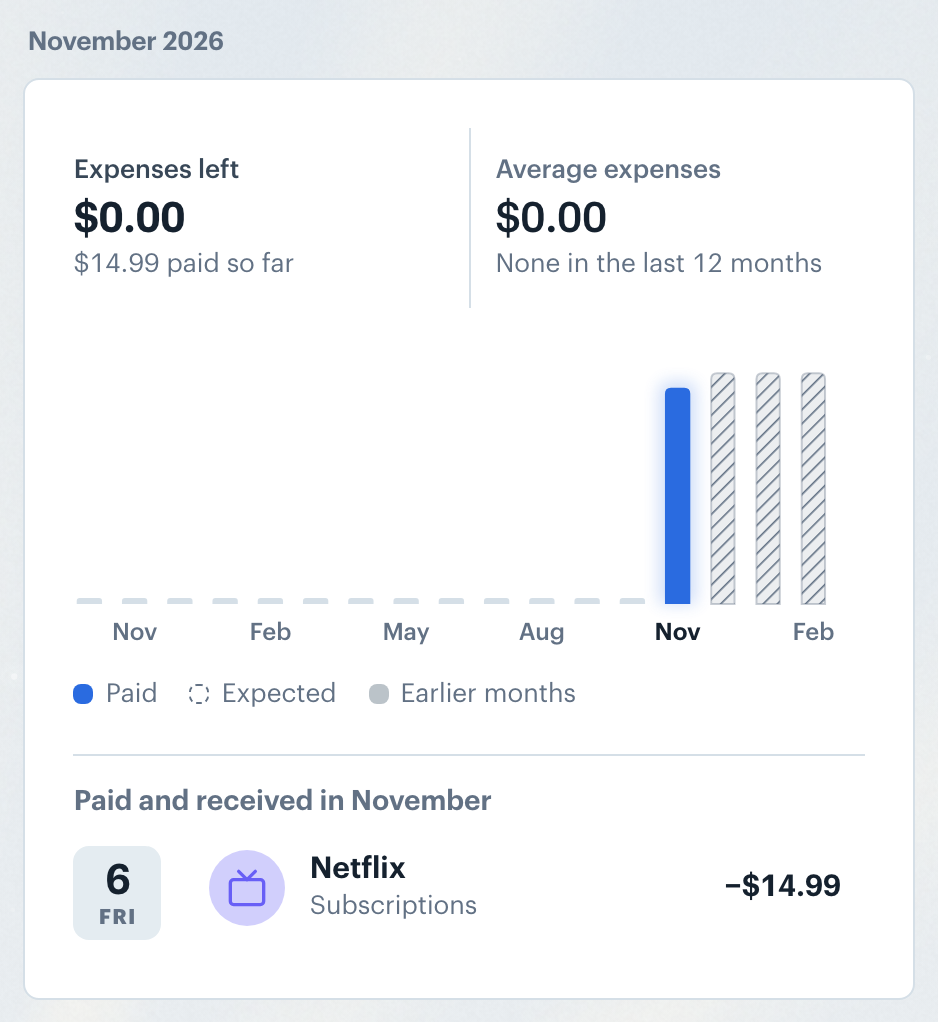
After Pending review, a card sums up one month. On a computer it sits to the right of Pending review and the Schedule. It shows what is left to pay this month (and to receive, when you have recurring income), with what was already paid underneath, and the average month over the last 12 months.
The bars show paid and expected charges by month, with income above the line when you have any, and scroll sideways when there are more months than fit. Click a bar, or on a phone tap it, to see that month. Under the card, Paid and received lists the transactions that month.
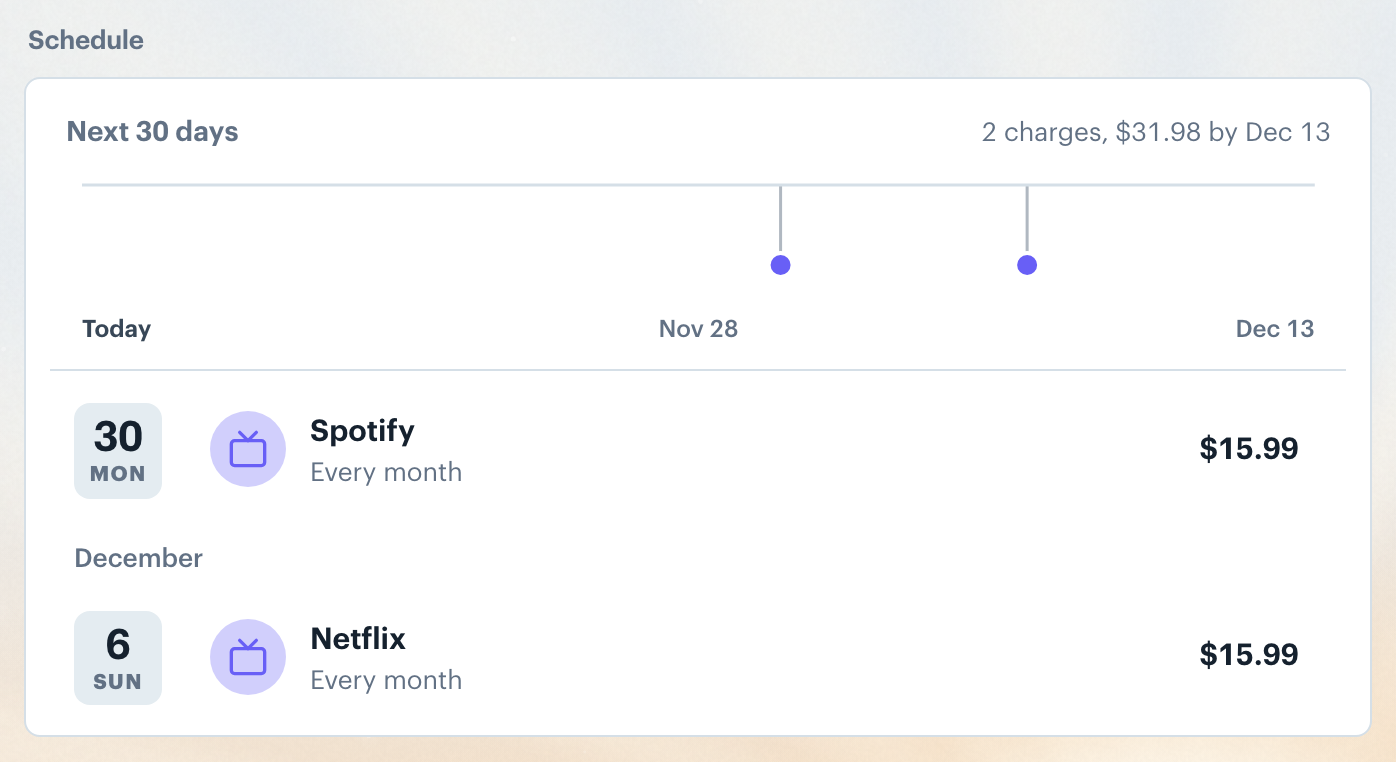
The Schedule lists every confirmed recurring charge and income. A ribbon plots what is due in the next 30 days, with the number of charges and their total beside it: charges hang below its line and income stands above it. Hovering a dot on the ribbon highlights its row below. On a phone, press and slide across the ribbon to see each charge's date, merchant and amount.
Each row shows the merchant, when it is due next, how often it repeats, and the amount. Income shows with a + in green; an overdue row says how many days it is late.
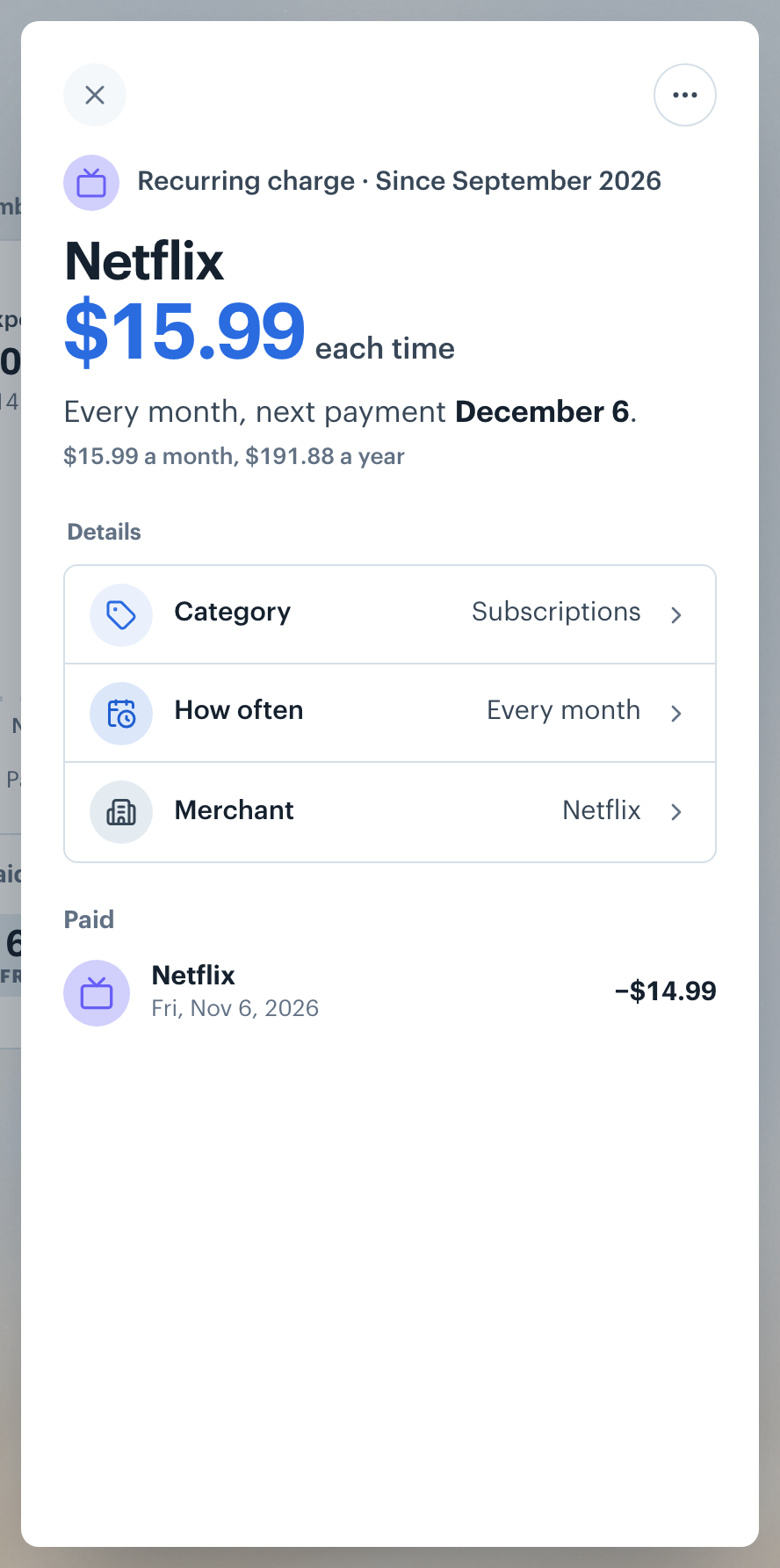
Clicking a row opens the charge's details: in a panel on a computer, and as its own page on a phone, with Recurring at the top to go back to the list. It shows the amount of each charge, what it costs a month and a year, a chart of past charges once there are two or more, the Details rows (category, how often and merchant) and every matched payment.
The ⋯ button lists what you can do with the charge: Pause it until a date, Edit amount and how often, Change category, or say it is Not recurring, which asks you first. A charge that needs a look lists its fix there too, such as Mark paid, Keep new price or Reject the new price.
Want to add a charge yourself? See Adding a Recurring Charge.
The Marked not recurring section at the bottom is collapsed by default (on a phone, one row naming the charges). It lists every charge you said is not recurring.
Each row has a Mark recurring button. Clicking it starts tracking the charge again, either straight away or after you confirm how often it repeats and its amount.

👋 Still have questions? Email [email protected].