
Related articles
Track your own money with Borderless Budget
Every account stays in its own currency, and every total adds up in yours. The first 30 days are free.
Get startedSteps to bring your Actual Budget transactions into Borderless Budget from Actual's CSV export, each account in the currency it's really in.
Every account stays in its own currency, and every total adds up in yours. The first 30 days are free.
Get startedSteps to bring your Actual Budget transactions into Borderless Budget. Each Actual account becomes a manual account here, in the currency you pick for it, or joins one you already have.
In Actual, open All accounts, open the ⋯ menu above the transactions, and choose Export. Actual downloads one CSV file with the transactions of all your accounts. Clear any search or filter first: the export holds only the transactions the list shows.
You can export one account the same way from its own page, but then its transfers can't be recognized (see below). Actual's Export data in Settings downloads a backup of the whole budget as a zip; the import doesn't read it.
On the Transactions screen, click the More actions button (the ⋯ icon in the toolbar), choose Import from…, then Actual. Drop the CSV into the dialog, or click to browse for it. On a phone, tap +, then Import from another app.
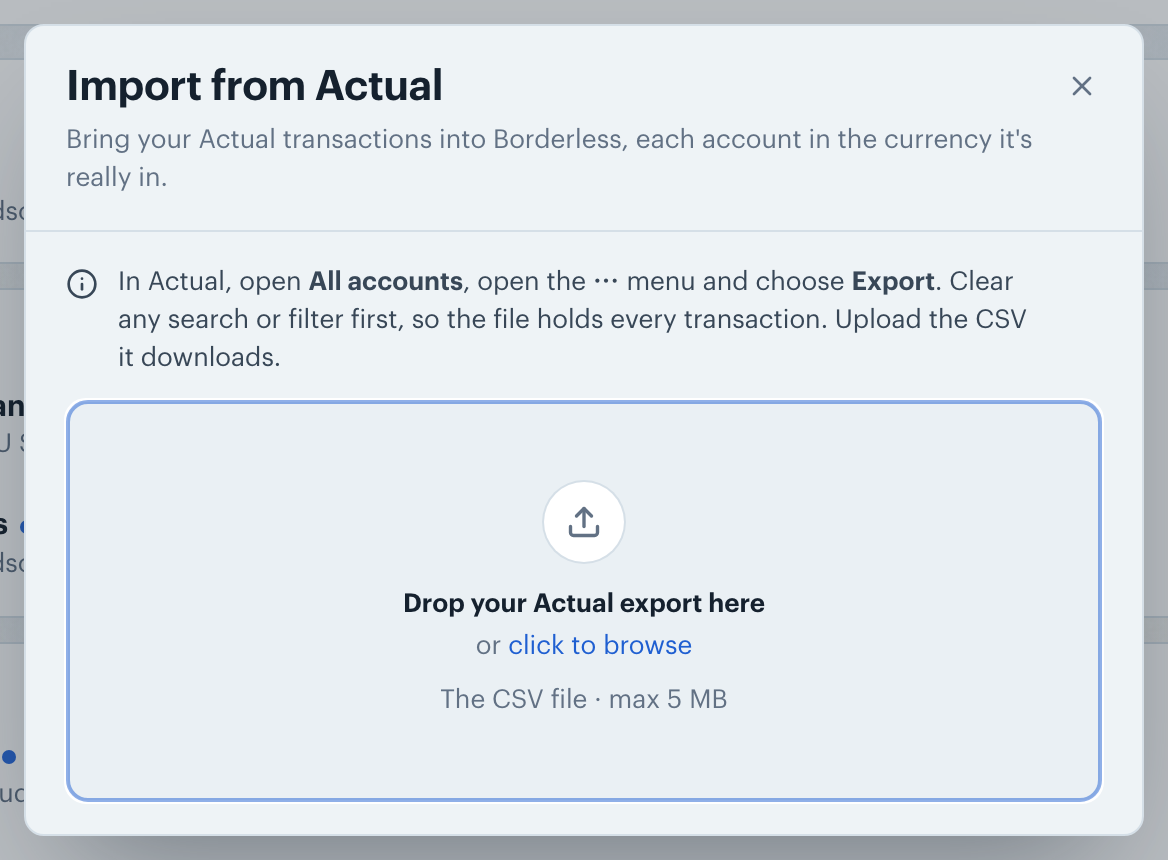
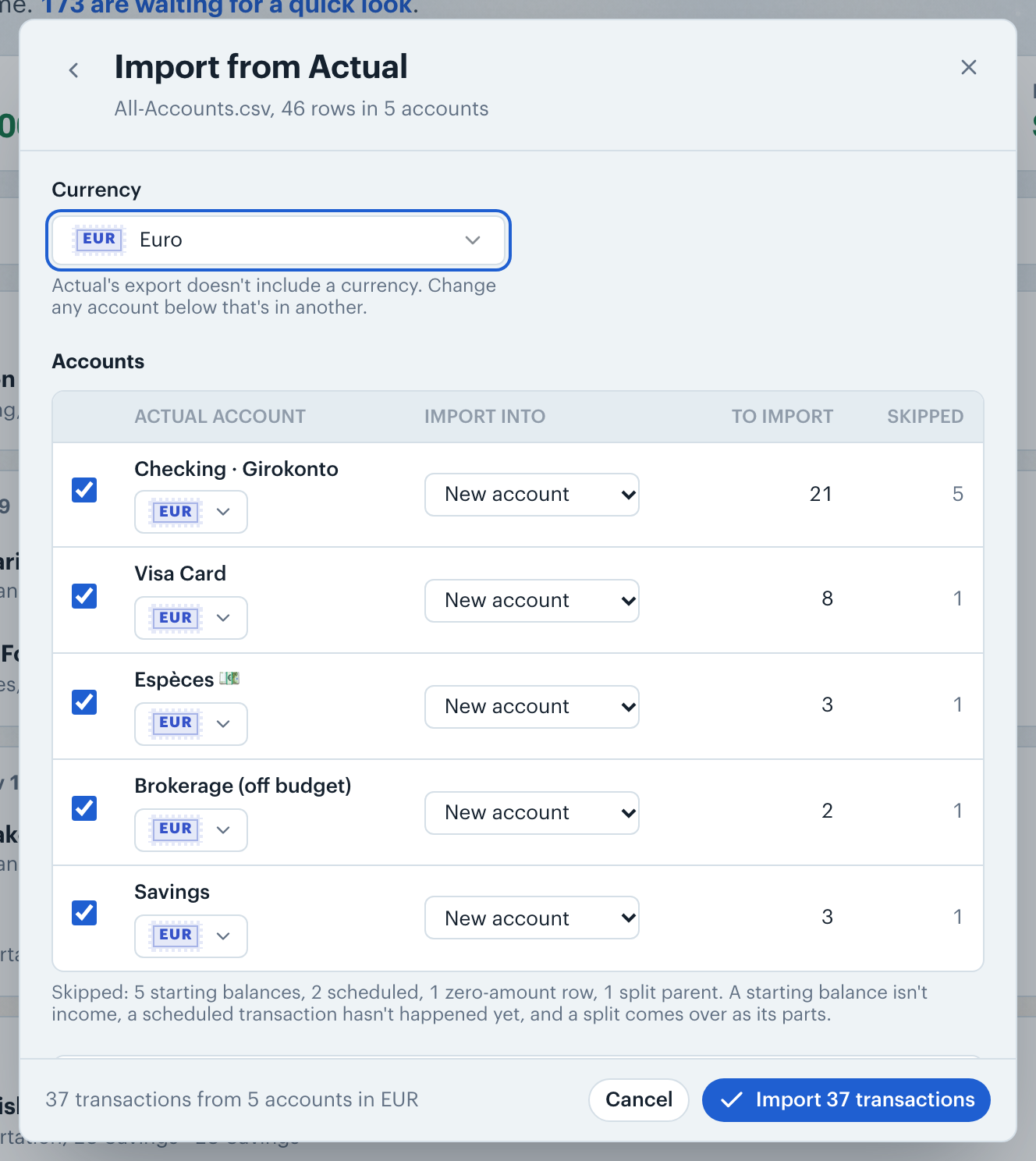
Actual's export doesn't record a currency, so the review asks for one. Choose it under Currency. If one of your accounts is in another currency, like a dollar brokerage next to euro accounts, change that account's currency under its name. Amounts come over as written in the file.
The review lists each Actual account and how many transactions it brings in. For each account, keep it ticked to import it, and pick where it goes under Import into: a new account, or one of your manual accounts. Then click Import.
Each transaction keeps its Actual category. A category with the same name as one of yours goes into yours. Any other gets a new category with that name, inside a group named after its Actual category group. A transaction's notes come over as its notes.
A transfer between two accounts in the file comes over uncategorized, and its two sides are matched once both are in. In a single account's export the other account isn't in the file, so those transfers keep any category Actual gave them.
Note: Starting balances, zero-amount and future-dated transactions are skipped. A split transaction comes over as its parts, each with its own category and note. Budgets and schedules aren't imported.
👋 Still have questions? Email [email protected].