
Related articles
Track your own money with Borderless Budget
Every account stays in its own currency, and every total adds up in yours. The first 30 days are free.
Get startedA plan style decides how your monthly budget is split: follow your spending, 50/30/20, pay yourself first, Flex or zero-based. Rules on a line set one category by a share of income or a set amount.
Every account stays in its own currency, and every total adds up in yours. The first 30 days are free.
Get startedHow plan styles and plan rules work in Borderless Budget. A style decides how your monthly budget is split. It measures and funds goals, and leaves your other categories' amounts as they are unless a rule sets them.
On the Budgets screen, the Plan style button sits in the Categories toolbar, after How much to budget, and names your current style. On a phone it's a row above your categories. It opens the plan style sheet, which offers five styles:
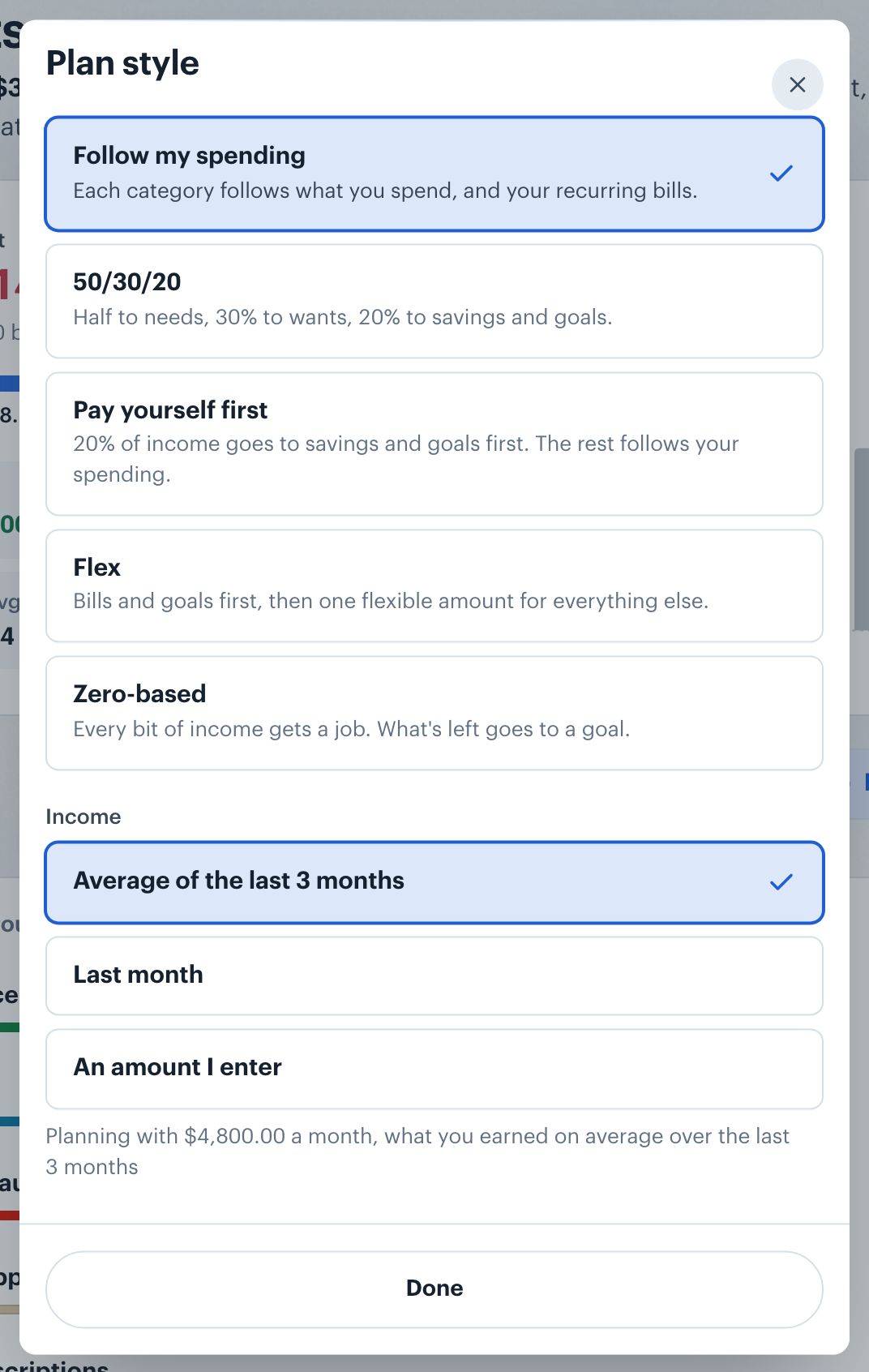
A style saves as soon as you pick it. 50/30/20, Pay yourself first and zero-based fund your goals. If you have no goal yet, choosing one of them creates an open-ended "Savings" goal. With zero-based, What's left goes to picks the goal that gets what's left.
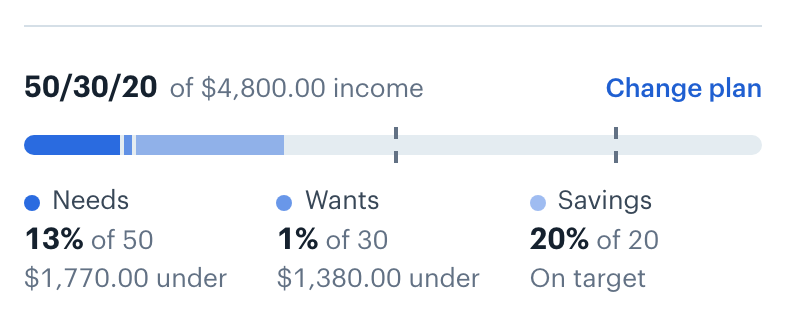
When your plan style measures something, as 50/30/20, Pay yourself first, Flex and Zero-based do, the plan shows under Left to spend at the top of the Budgets screen, in place of the four tiles, which become one line under the chart. Change plan opens the plan style sheet. With 50/30/20 it's one bar of your income split into needs, wants and savings, with dashed marks at 50% and 80%, so you can see at a glance which bucket runs over. Under the bar, each bucket reads its share of income against its target, such as "64% of 50", and how far off it is: "$2,123.86 over", "$2,031.80 under" or, for savings, "$1,548.17 short of 20%".
With Flex, the plan reads how much of your flexible amount is left, for example "$570.11 left of $2,979.11 flexible", with what bills and goals take first.
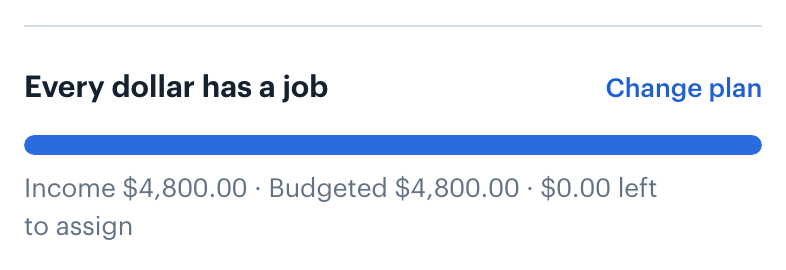
With zero-based, it compares the income you budgeted in your Income categories for the month with every other category's budget. Since what's left goes to your goal, it reads "Every dollar has a job" unless your categories' budgets add up to more than the income you budgeted, for example "$200.00 more than your income is budgeted". The bar then marks where your income ends and shows the extra past it. To fix that, raise your income budget or lower a category.
Want to save toward something? See Saving for Goals.
Income, in the same sheet, sets the income a style plans with: Average of the last 3 months, Last month or An amount I enter. 50/30/20, Pay yourself first and Flex need income, so they're unavailable until there is some.
Zero-based doesn't use this setting. It plans with the income you budget for the month, and the sheet says which amount it uses, for example "Measured against the $4,000.00 income you budgeted for November". If you haven't budgeted any income, it asks how much you'll budget each month and suggests your 3-month average. Saving budgets that amount on your main Income category from this month on.
Each spending category sits in the Needs or Wants bucket, or in No bucket. Categories start in the usual bucket (housing and groceries are needs, dining out and shopping are wants). While a style or rule is on, you can change one category's bucket from its ⋯ menu → Bucket, or every category's at once under Buckets in the plan style sheet. Goals are always Savings.
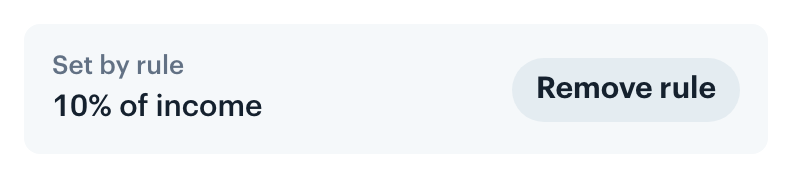
A rule sets one category's budget each month. Open a category and choose Add a rule under its Budgeted and Spent figures. It offers A share of income ("10% of income"), A set amount each month, Refill up to an amount and What's left, then the percent, amount or weight, and Save. A line a rule sets shows Set by rule, and never drops below its recurring bills and goals. Remove rule puts it back on automatic.
Rules run in order: goals with a date first, then the other rules, then what's left. A rule the income can't cover says so, for example "Japan trip gets $500.00 of the $1,000.00 its rule asks for."
Note: A set amount in another currency converts at each month's exchange rate. If no rate is available, the rule sets no amount that month.
👋 Still have questions? Email [email protected].