
Related articles
Track your own money with Borderless Budget
Every account stays in its own currency, and every total adds up in yours. The first 30 days are free.
Get startedA tour of the five Settings tabs: Profile, Budget, Home currency, Billing & plan, and Security.
Every account stays in its own currency, and every total adds up in yours. The first 30 days are free.
Get startedBorderless Budget's Settings modal gives you one place to manage your budget's name, home currency, subscription, and security options. Open it from any screen: click your account at the bottom of the sidebar, then Settings. On a phone, tap More, then your account: Settings opens as a list with your plan at the top, then Profile, Notifications, Devices and connected apps and Switch budget, then the other tabs under More settings, and Sign out last.
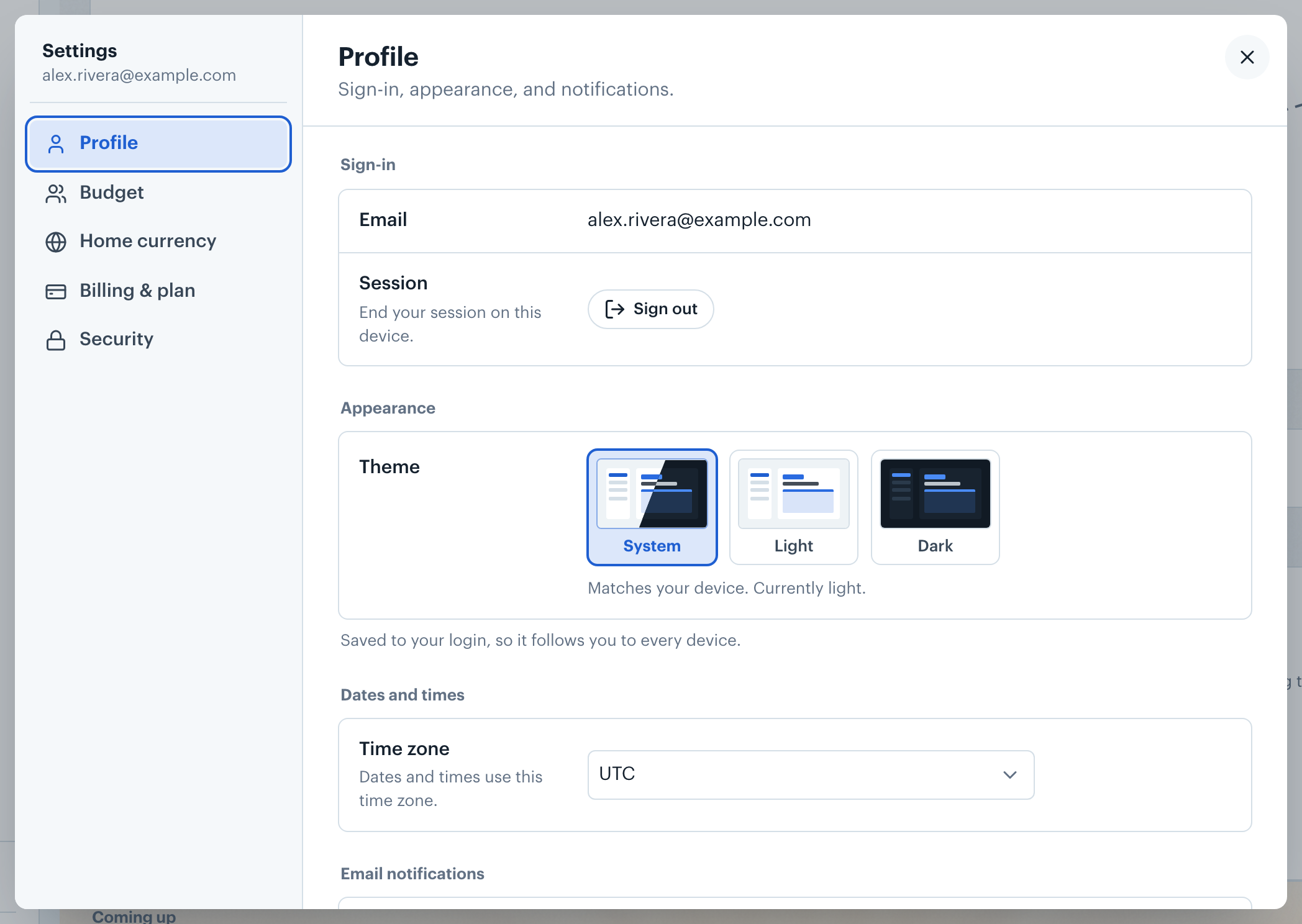
The Profile tab holds your sign-in, the Appearance setting, and your email notifications. Your email address is shown read-only in the Sign-in section. To rename your budget, open the Budget tab and edit Budget name; the change saves when you leave the field.
On a phone, Profile holds Budget name, your home currency, your time zone, your number and date format and your email address. Your email notifications are under Notifications, and the theme is under More settings, Appearance.
The Session row contains a Sign out button that ends your session on the current device. On a phone, Sign out is the last row of Settings and asks you to confirm first.
The Appearance section sets the app's theme. System follows your device's light or dark setting, while Light and Dark always use that theme. Your choice is saved to your login, so it follows you to every device.
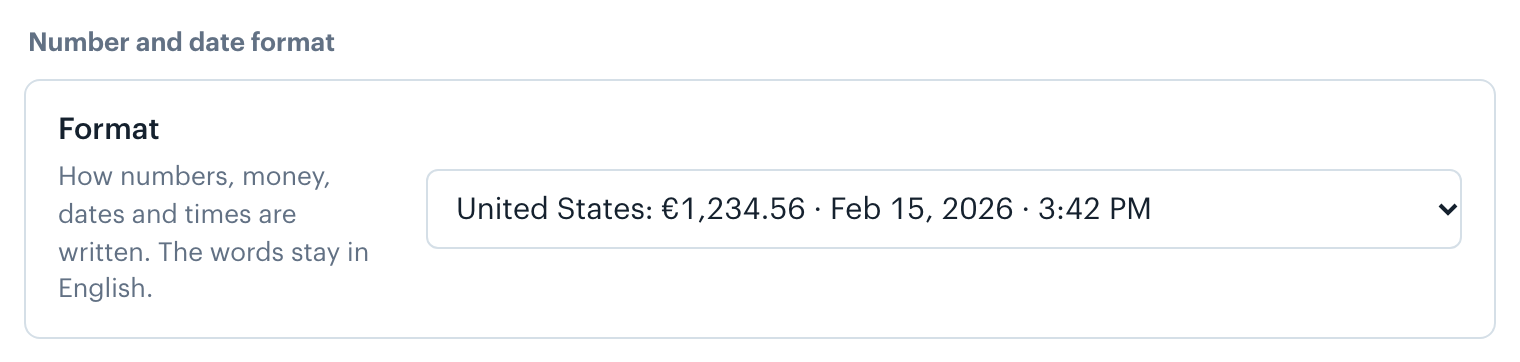
The Number and date format section sets how numbers, money, dates and times are written, for example 1.234,56 € and 15 Feb 2026 for Germany. The words stay in English. The first time you sign in, it follows your browser's language; pick another under Format at any time. It applies to your login only, so others sharing your budget keep their own.
The Budget tab holds your budget's name and the people you share it with. On a phone, the same settings are under More settings, Name and members. Edit Budget name and the change saves when you leave the field. Below it you can invite people to the budget and manage its members.
Rollover isn't in Settings: each category has its own Roll over leftover switch in its detail on the Budgets screen. See Budget Rollover.
Want to share your budget? See Inviting Household Members.
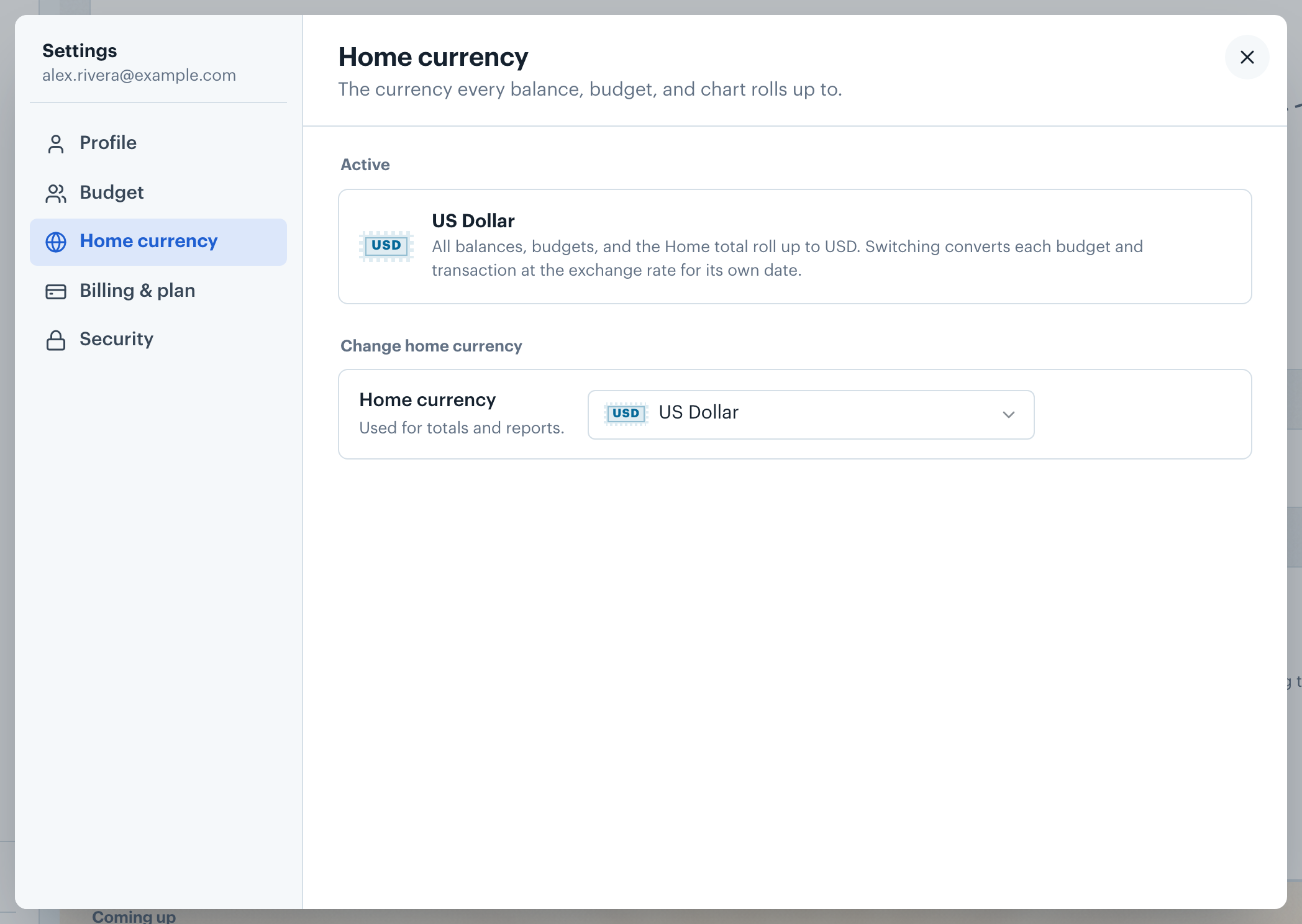
The Home currency tab controls which currency all balances, budgets, and charts roll up to. The active currency is shown at the top of the tab. Below it, the Home currency picker lets you switch to another currency; a dialog asks you to confirm first.
Switching recomputes every total using each transaction's own daily exchange rate. Native transaction amounts are never modified.
Want to change your home currency? See Changing Your Home Currency.
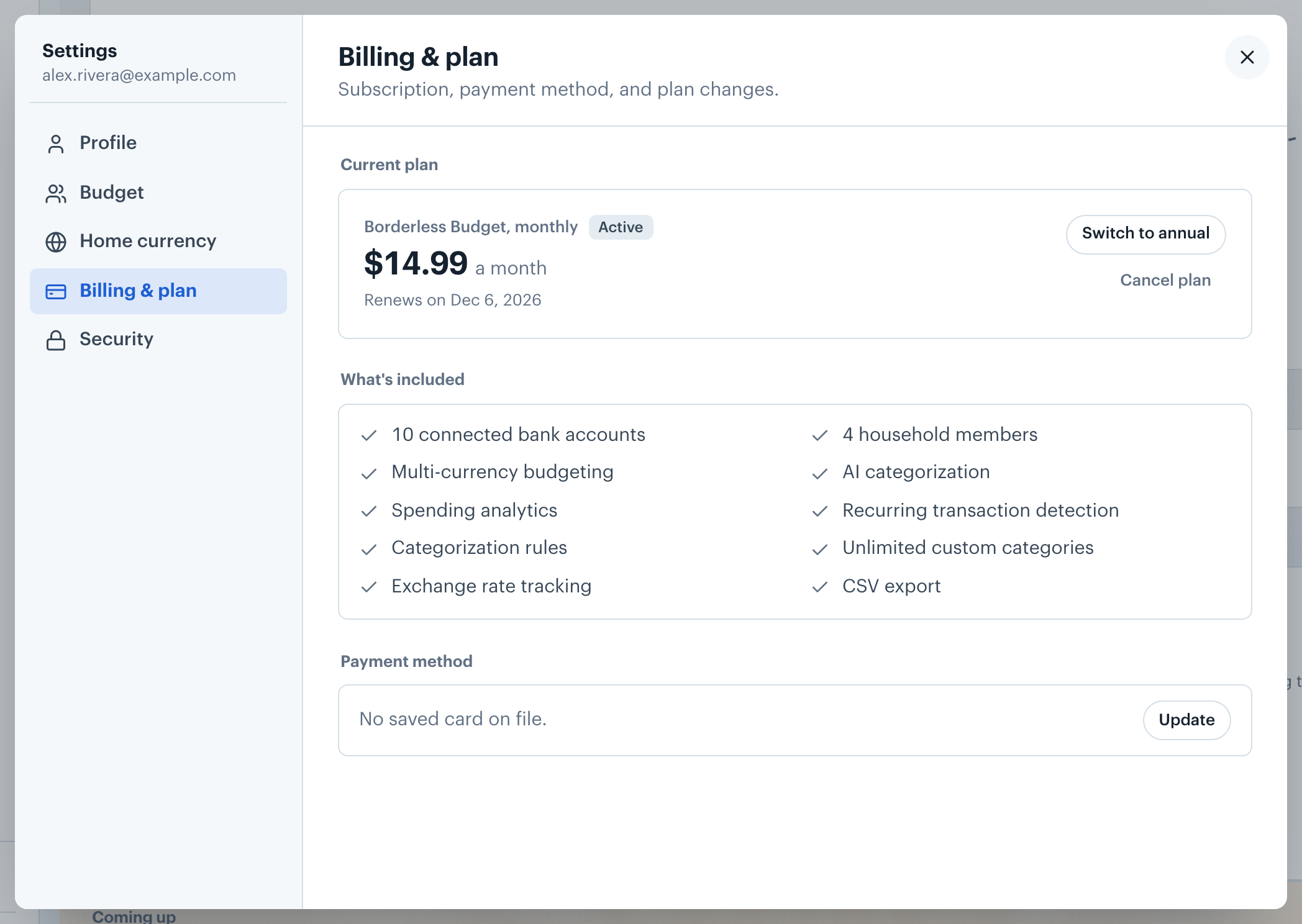
The Billing & plan tab shows your current subscription tier, payment method, and options to upgrade or cancel. The tab subtitle reads "Subscription, payment method, and plan changes."
Switching between monthly and annual applies right away, prorated; canceling takes effect at the end of the current billing period.
Want to upgrade or cancel? See Managing Your Subscription.
The Security tab is one page of sections: Passkeys, Connected apps, Export data, Privacy, and Delete account. Each works right there; confirmations open in a small dialog.
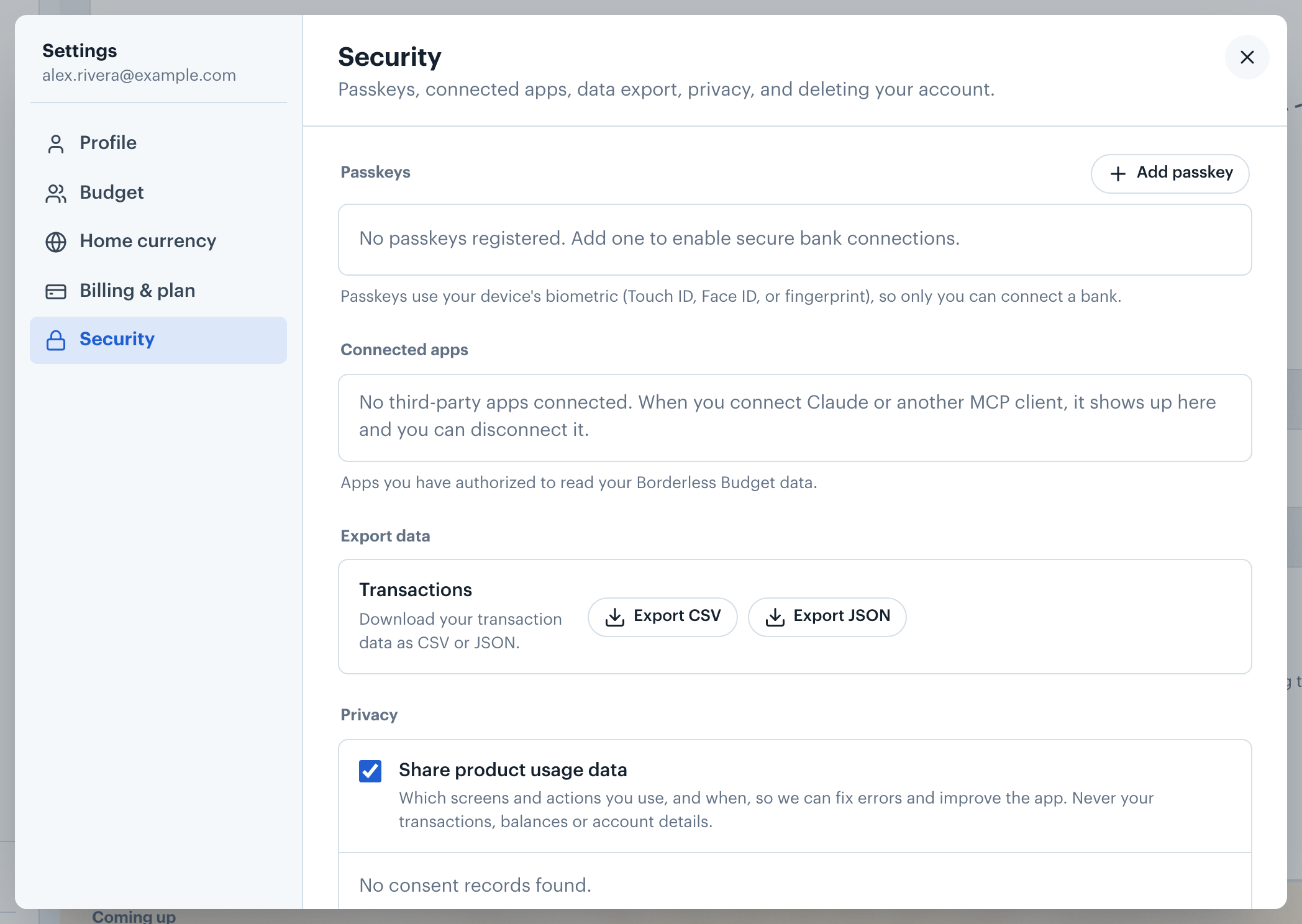
The Passkeys section lists every passkey registered to your login. Each entry shows the device type, whether it is backed up, and the date it was added. Click Add passkey to register one with your device's biometric or PIN prompt. Rename gives a passkey a name you'll recognize; Remove asks first, and you always keep at least one.
Want to manage passkeys in detail? See Security and Passkeys.
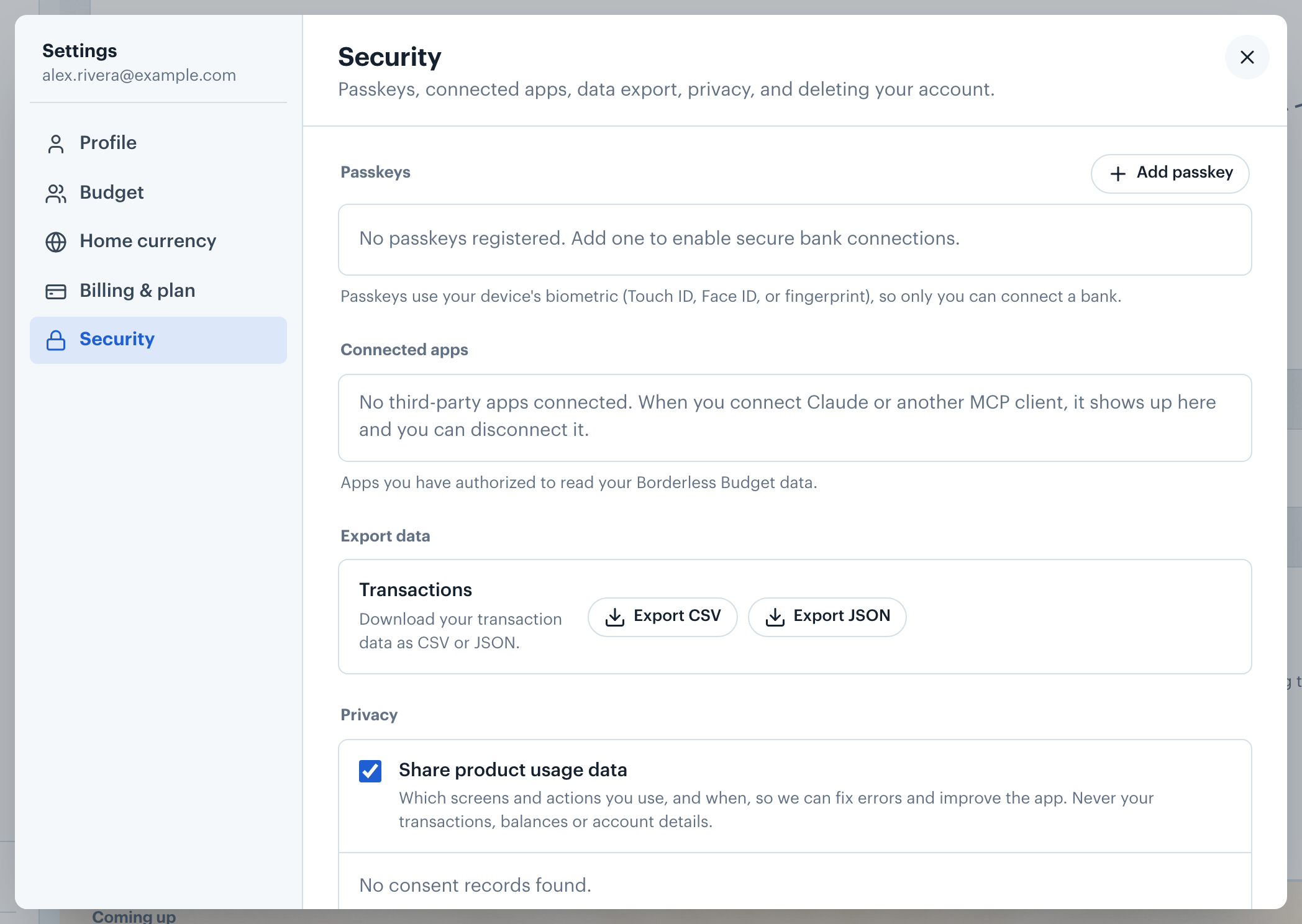
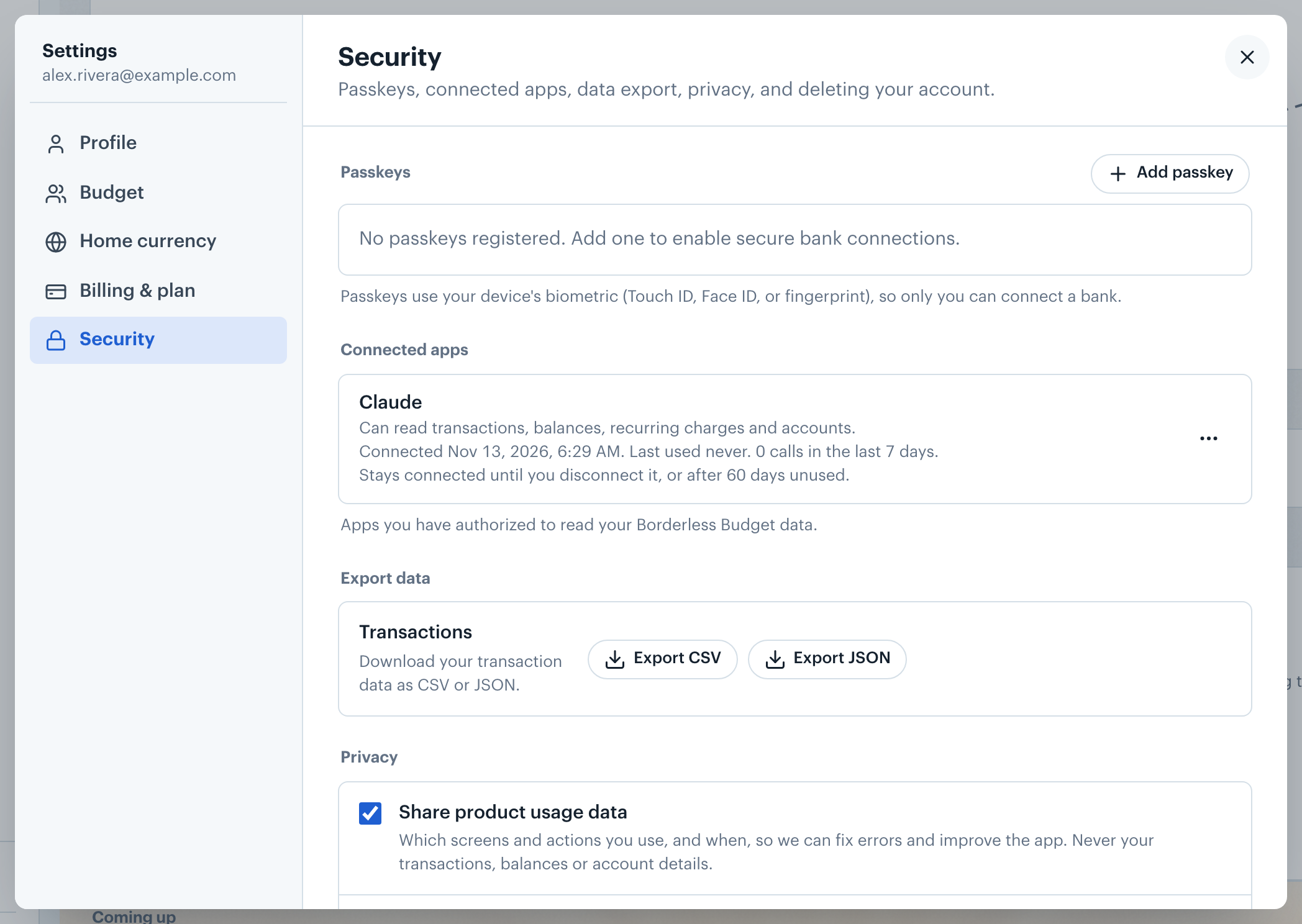
The Connected apps section lists third-party apps you have authorized to read your Borderless Budget data, such as Claude or other MCP clients. Each entry shows the app name, connection date, last-used date, and call count for the past seven days. Click ⋯ next to an app, then Disconnect, and confirm to remove its access immediately. On a phone, swipe the app's row to the left instead.
Want to manage connected apps? See Managing Connected Apps.
👋 Still have questions? Email [email protected].