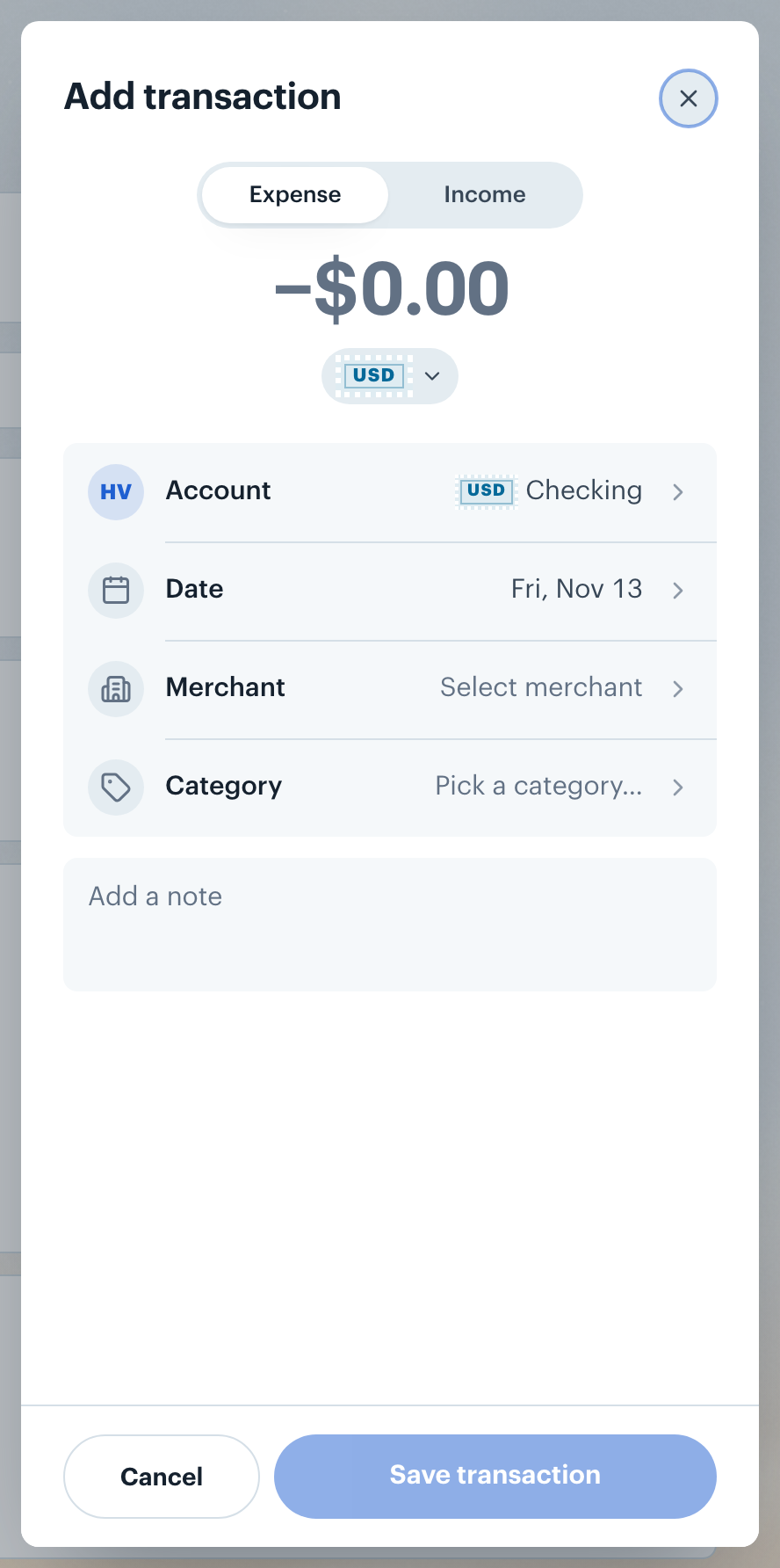
Borderless Budget lets you add transactions manually from the Add transaction sheet.
This is most useful for manual accounts, where your balance is computed from the transactions you enter.
Open the Add transaction sheet
On a computer, click Add (the plus button) at the right of the Transactions screen toolbar. On a phone, tap the plus button beside the title and choose Add transaction. The Add transaction sheet opens over the list.
The Transactions toolbar. Add is the plus button on the right.
Enter the amount and type
Select Expense or Income using the toggle at the top of the sheet.
Type the amount in the large number under it. Only digits and one decimal separator are accepted, a point or a comma, so 12.50 and 12,50 are both twelve fifty.
The currency button under the amount shows the account's currency, for example USD. To change it, tap it and pick a currency from the Currency list.
The Add transaction sheet. The Expense/Income toggle, the amount and the currency button sit at the top.
Fill in the details
The rows under the amount each open a list of choices.
Tap Account to choose the account this transaction belongs to. The accounts are grouped by bank.
Tap Date to confirm or change the date. The date cannot be in the future.
Tap Merchant, then start typing. Pick a merchant from the list, or click Create new at the bottom to add one. When you pick a merchant you already have a rule for, the category is filled in for you. Merchant is optional.
Tap Category (it reads Pick a category… until you choose) and select a category. To create a new one, click New category at the bottom of the list.
In the note box under the rows ("Add a note"), add any detail you want to remember, such as who you paid back. The note is optional.
Click Save transaction. The sheet closes, a "Transaction added" message shows, and the new transaction appears in the list.
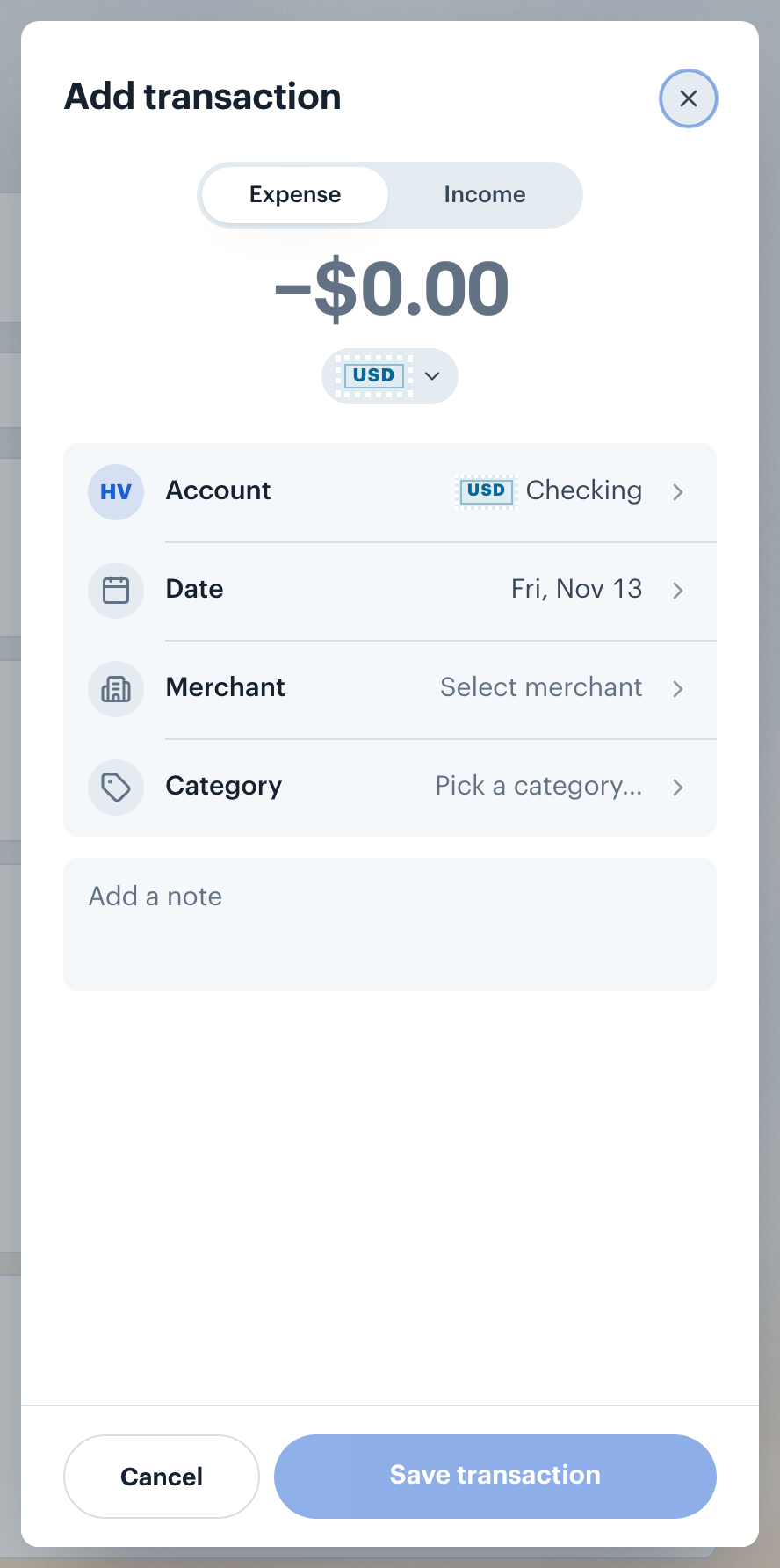
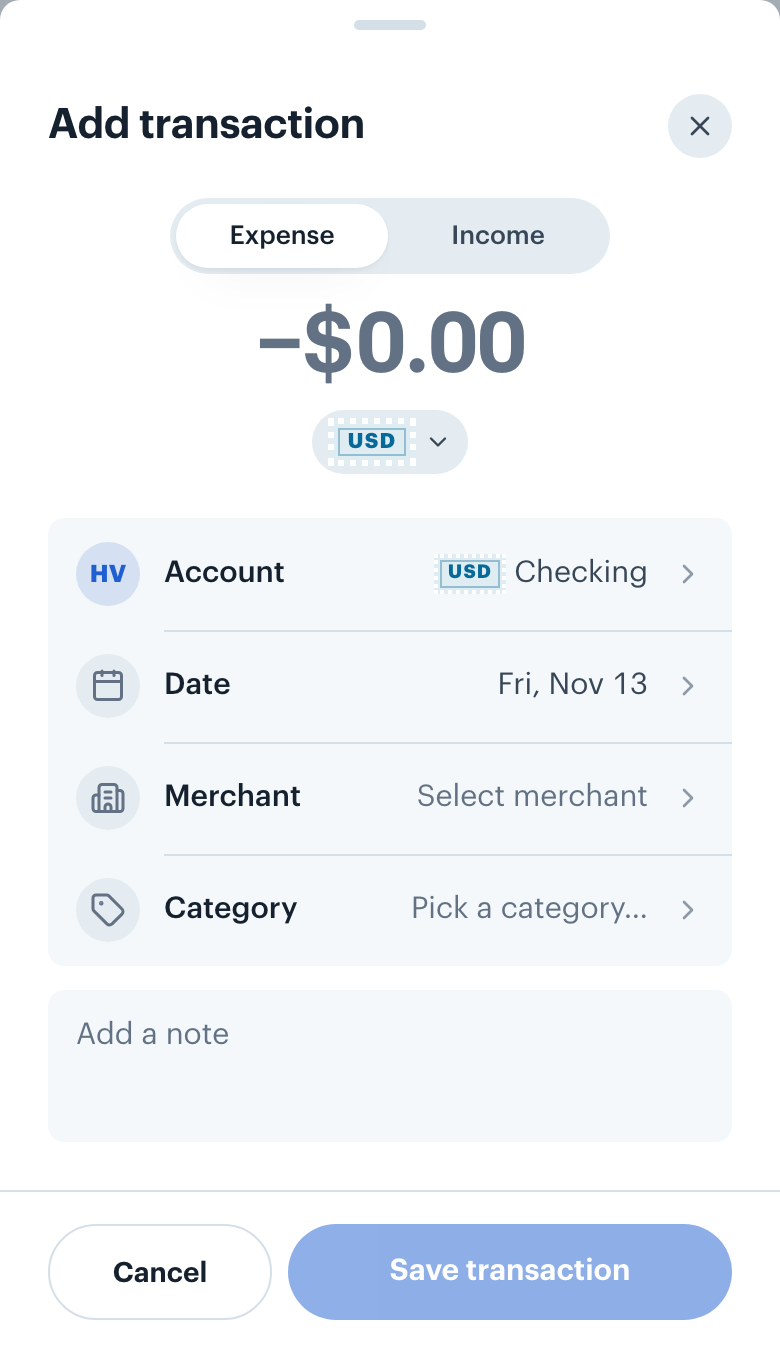
The Add transaction sheet with the Account, Date, Merchant and Category rows below the amount.The Add transaction sheet on a phone.