
Related articles
Track your own money with Borderless Budget
Every account stays in its own currency, and every total adds up in yours. The first 30 days are free.
Get startedSteps to get set up in Borderless Budget in just a few minutes.
Every account stays in its own currency, and every total adds up in yours. The first 30 days are free.
Get startedWelcome to Borderless Budget. This guide walks you through everything you need to do in your first session. Setup takes a few minutes; the rest happens automatically as your accounts sync.
When you sign up, the first thing Borderless Budget asks for is your home currency. Every total you see in the app, from net worth to budget bars to spending charts, is shown in this currency.
Pick the currency you actually plan and pay rent in. If your life is split between two countries, pick the one that feels like home base. You can change it later from Settings. See Choosing Your Home Currency for what the home currency controls.
Next, link your bank and card accounts. Borderless Budget connects securely to banks in Europe, the United States and Canada. Linking is what lets the app import transactions, suggest categories, and start your budget from your real spending.
Before you connect, onboarding offers an optional passkey for sign-in (Skip for now passes on it) and asks you to tick two boxes and click Approve to allow read-only data sharing. See Security and Passkeys for how sign-in works.
Then click Find your bank and choose the country your bank is in. In the United States and Canada the Plaid window opens so you can search for your institution; in Europe you pick your bank from our list. Most banks finish syncing within a few minutes. If your transactions have not appeared after an hour, email [email protected] and we will take a look.
Borderless Budget starts with a free trial. Onboarding shows both plans, annual and monthly, with when your trial starts and when billing begins. Annual works out cheaper per month; monthly is a smaller commitment if you are trying things out. You can switch plans or cancel anytime from Settings. See Managing Your Subscription for the full flow.
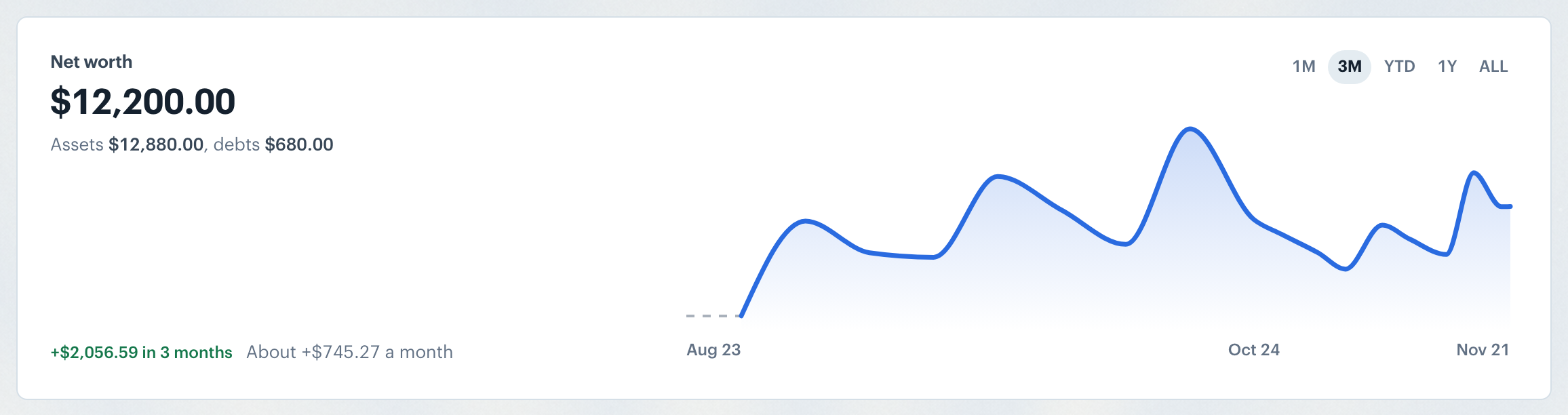
Onboarding ends on a review of your setup with your net worth. Click Go to Home to finish.
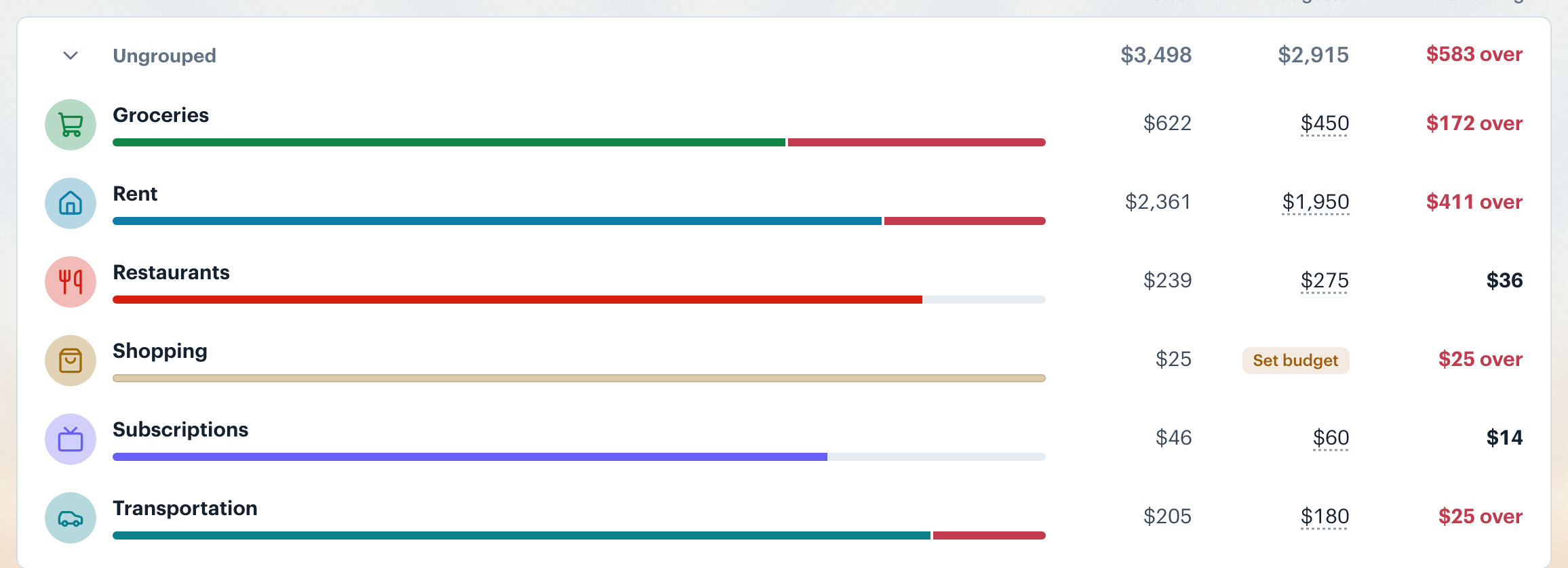
Open Budgets from the sidebar. There is nothing to set up: once a full month of your spending is in, the app sets an amount for each category from your last 3 complete months of spending and the recurring charges you confirm, and keeps those amounts current. Until then, Budgets lists common categories with no amounts; add an amount to any you want to plan now. To budget less or more overall, use the How much to budget control beside Add a category.
You can change the amount for any category, for one month or for every month after, group related categories together, archive categories you do not want to track, and add new categories for spending you anticipate but have not done yet. See Adjusting Monthly Budgets for the step-by-step.
Open Transactions from the sidebar. This is your full history, newest first. Each transaction has a category already assigned, based on the merchant name and Borderless Budget's pattern matching.
To change a category, click the row to open its details and pick a new one. The more you correct, the better the app gets. See Categorizing Transactions for the bulk-update flow and the detail panel.
Open Recurring from the sidebar. Borderless Budget watches for charges that repeat on a schedule, like rent, subscriptions, and gym memberships, and lists them under Pending review for you to confirm.
For each candidate, you will see the merchant, the cadence the app detected, and the typical amount. Click Confirm to move it into the Schedule, or Not recurring to dismiss it. On a phone, swipe the row right to confirm it or left to dismiss it. See Confirming Recurring Charges for the full flow.
Home is the first page in the sidebar. Open it at the start of any session. Needs you lists anything waiting on you, such as transactions to review. Below it are Net this month, Net worth, and Currency impact, then what is coming up and how your budget or spending is tracking.
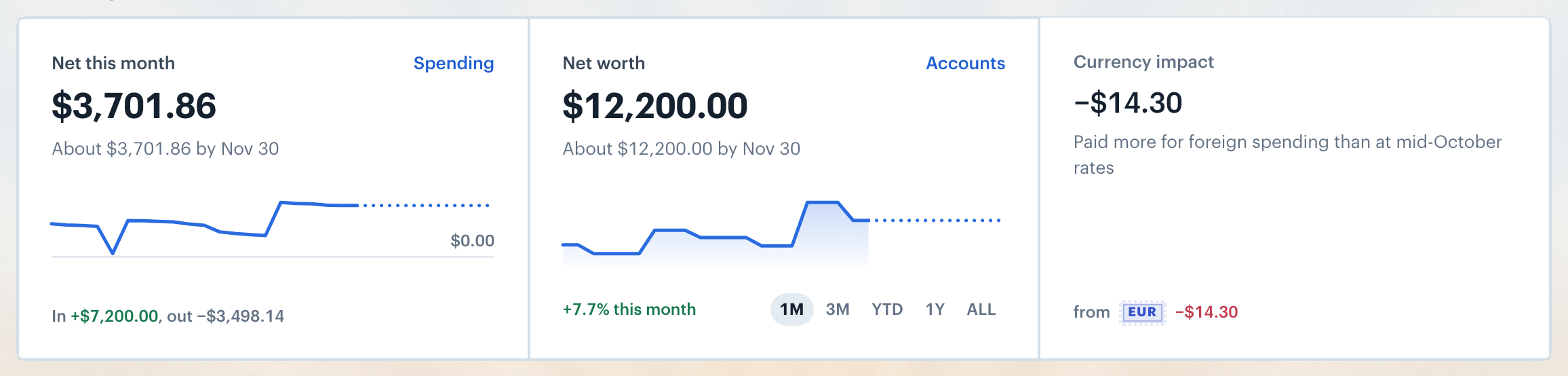
Note: Net worth and Net this month show in your home currency. Foreign-currency transactions are converted at the rate for their date, and balances at today's rate. See International Currency for how conversion works.
👋 Still have questions? Email [email protected].